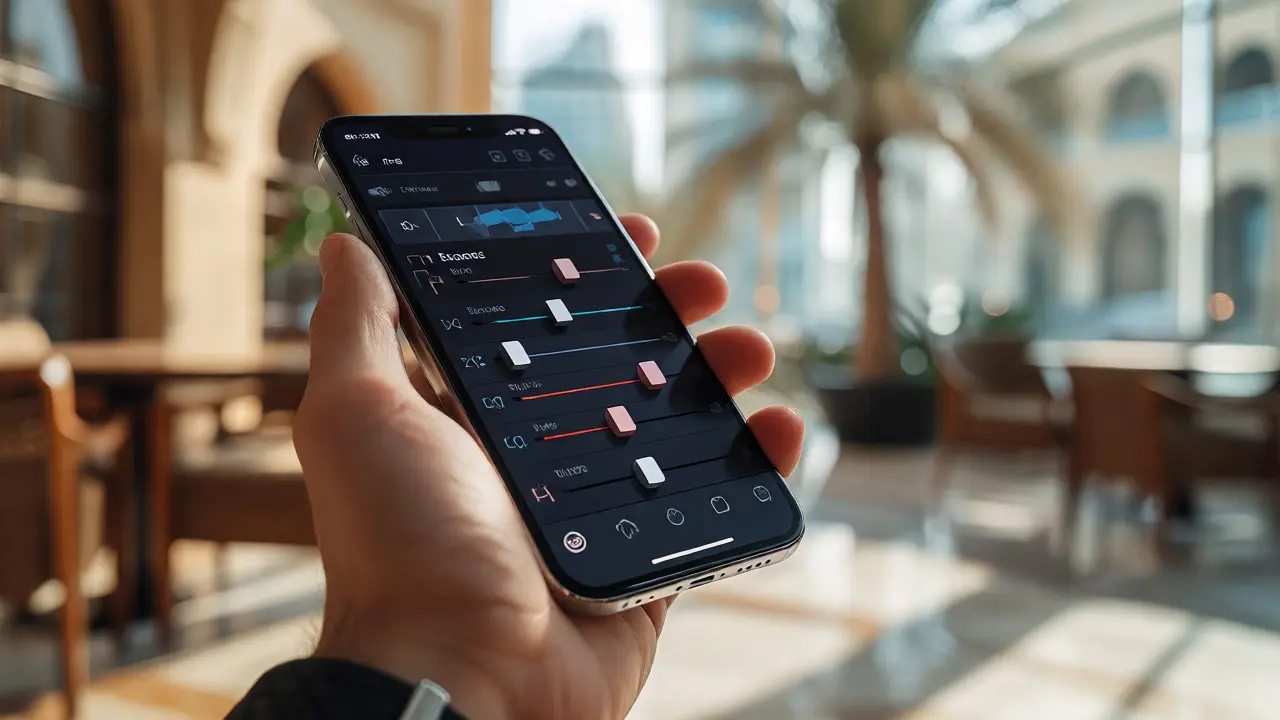
You just captured a great shot on your phone. It’s decent, but it needs work. Maybe the shadows are too deep, or the colors look flat. You have ten minutes before you need to post it, send it to a client, or save it for later. Do you open Adobe Lightroom Mobile, which feels like carrying a desktop studio in your pocket? Or do you grab Snapseed, the free tool that hides powerful controls behind simple gestures?
This isn’t just about which app has more filters. It’s about efficiency. If you’re editing on a small screen, every extra tap costs time and mental energy. The right choice depends entirely on what kind of photographer you are and how much control you actually need versus how much friction you can tolerate.
The Core Difference: Control vs. Speed
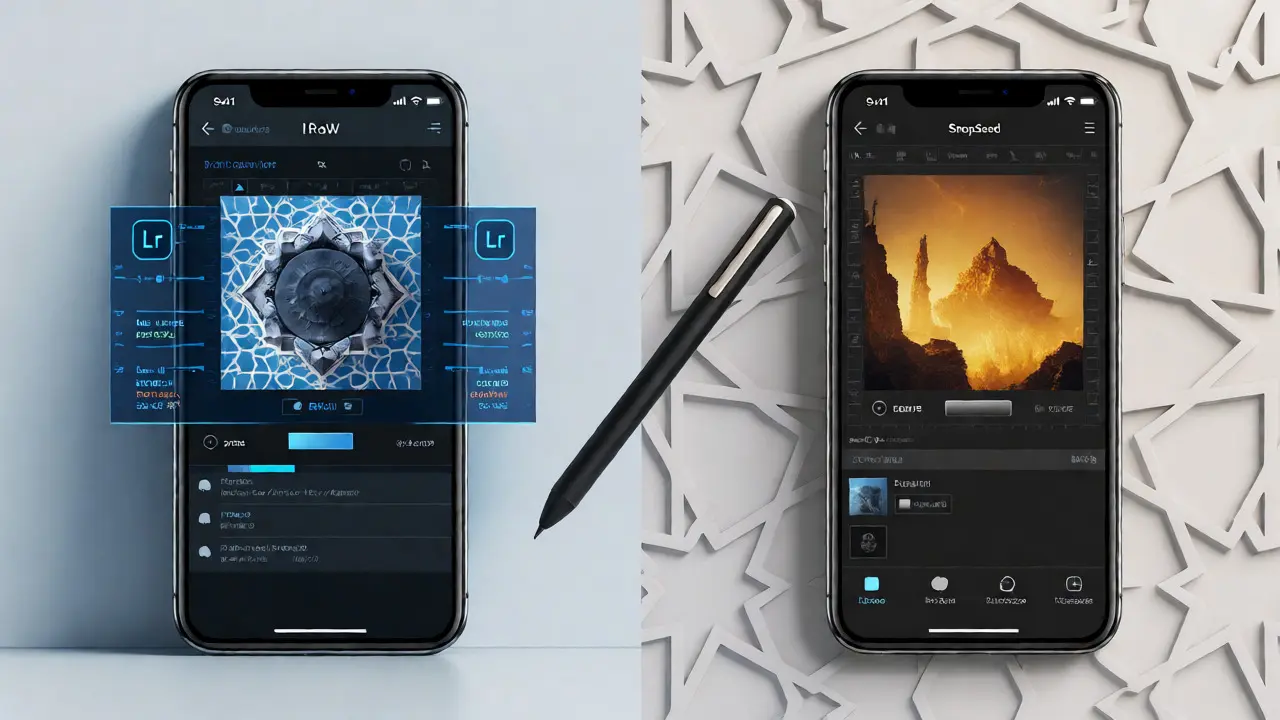
Think of these two apps as different vehicles for the same destination. One is a sports car with manual transmission; the other is an automatic sedan with cruise control.
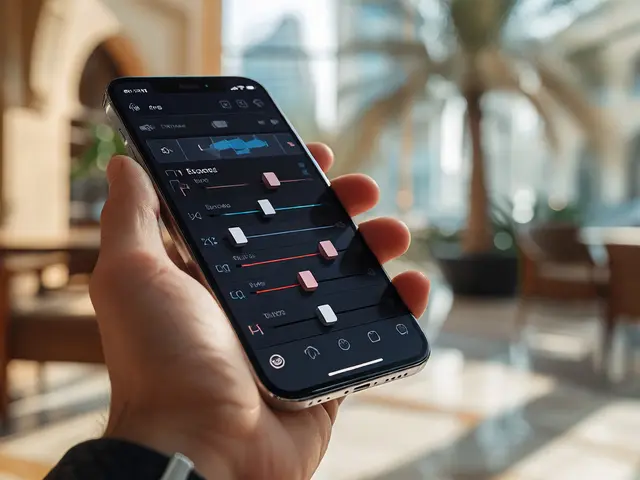
Lightroom Mobile is essentially a stripped-down version of the desktop software most professionals use. It relies on a non-destructive editing model where changes are stored as metadata instructions rather than baked into the image file. This means you can tweak exposure today and change it next month without losing quality. It connects directly to Adobe Creative Cloud, syncing presets and edits across devices. If you already use Photoshop or Lightroom Classic on a computer, this ecosystem integration is a massive advantage.
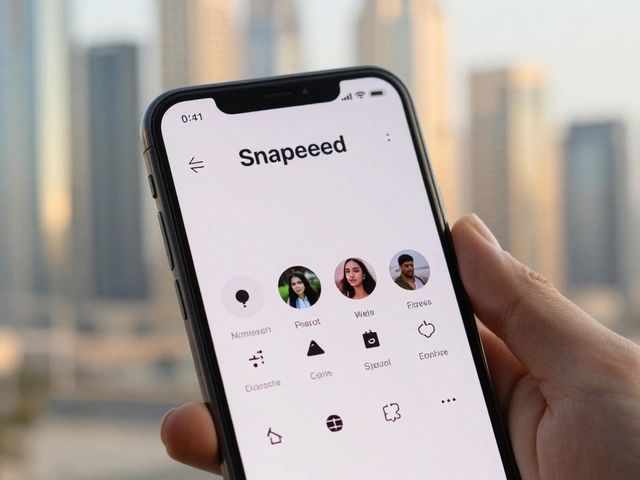
Snapseed, owned by Google, takes a different approach. It uses a "stack" history system. Every edit creates a new layer in a visual stack. You can swipe through the history to see exactly what you did step-by-step. It doesn’t sync to the cloud automatically in the same seamless way Lightroom does, but it’s incredibly fast for quick fixes. There’s no subscription fee, no account requirement (mostly), and it opens instantly.
Which one saves you more time? That depends on your starting point. If you shoot RAW files and need precise color grading, Lightroom wins despite its learning curve. If you shoot JPEGs and just want to brighten eyes and fix a horizon, Snapseed gets you there in half the time.
When to Reach for Lightroom Mobile
Use Lightroom when precision matters more than speed. The interface is denser, with sliders for everything from chromatic aberration to split toning. But that density pays off in specific scenarios.
- RAW File Processing: Lightroom handles DNG and proprietary RAW formats from phones (like Apple ProRAW or Samsung Expert RAW) significantly better than Snapseed. The demosaicing algorithms preserve more detail in highlights and shadows.
- Consistent Branding: If you manage a social media feed or a client portfolio, you need consistent looks. Lightroom lets you create custom presets on your desktop and sync them to your phone. One tap applies a complex set of adjustments-color balance, contrast, vignette-that would take five minutes to replicate manually elsewhere.
- Non-Destructive Workflow: Because edits are saved as sidecar data, you can revisit an old photo months later and completely change the mood without starting over. This is crucial for long-term projects or client revisions.
The downside? It’s heavier. Opening a large RAW file can cause a slight lag on older phones. The UI requires more taps to find niche tools. And unless you have an Adobe Photography Plan subscription, some advanced features are locked behind a paywall.
Why Snapseed Still Wins for Quick Edits
Snapseed remains the go-to for many photographers because it removes friction. There’s no login wall blocking immediate access. The gesture-based editing is intuitive once you learn the basics: drag up/down to adjust intensity, left/right to switch parameters.
- Selective Adjustments: Snapseed’s "Brush" tool is arguably superior for quick local edits. Want to brighten just the subject’s face? Paint over it. Done. In Lightroom, you’d typically use a radial gradient or mask, which involves placing points and adjusting falloff. For quick portrait touch-ups, Snapseed’s brush is faster.
- Healing Tool Efficiency: Removing blemishes or dust spots is dead simple in Snapseed. Tap the spot, adjust the radius, and move on. Lightroom’s healing brush works well but often requires zooming in and out more frequently to get clean results on high-resolution screens.
- No Subscription Fatigue: Snapseed is free. Period. No trial periods, no upsells mid-edit. For hobbyists or casual shooters, this removes a psychological barrier to opening the app.
However, Snapseed lacks robust preset management. While you can save "Looks," they aren’t as granular or shareable as Lightroom presets. Exporting also tends to flatten layers immediately upon saving, meaning if you want to tweak something later, you might have to start from scratch unless you carefully manage your file versions.

Benchmarking Workflow Efficiency
To decide which app fits your style, consider the typical tasks you perform. Below is a comparison based on real-world usage patterns for common mobile photography tasks.
| Task | Lightroom Mobile | Snapseed | Winner |
|---|---|---|---|
| Opening & Importing | Slow on large RAWs; requires cloud sync setup | Instant; direct camera roll access | Snapseed |
| Basic Exposure Correction | Fast via auto-settings; precise sliders | Fast via Tune Image; intuitive gestures | Tie |
| Local Adjustments (Face) | Masking tools (precise but slower) | Brush tool (quick but less precise) | Depends on need |
| Color Grading | Advanced HSL and Color Mix panels | Curves and Selective adjustments | Lightroom |
| Saving/Exporting | Syncs to Cloud; multiple export options | Saves to device; limited metadata options | Lightroom |
| Learning Curve | Steep; familiar to desktop users | Moderate; gesture-heavy | Snapseed |
Notice the pattern? Snapseed dominates in initial interaction and simple corrections. Lightroom pulls ahead when complexity increases, specifically regarding color science and file management.
Building a Hybrid Workflow
Here’s the secret most pros don’t talk about enough: you don’t have to choose one. Many efficient mobile editors use both apps in tandem, leveraging each for its strengths while minimizing weaknesses.
A common hybrid workflow looks like this:
- Capture in RAW: Shoot using your phone’s native camera app in Pro or RAW mode to maximize dynamic range.
- Rough Edit in Lightroom: Open the file in Lightroom. Apply a global preset for white balance and basic tone curve correction. This establishes the foundation quickly.
- Export to JPEG: Save the corrected base image as a high-quality JPEG.
- Fine-Tune in Snapseed: Open the JPEG in Snapseed. Use the Brush tool for selective dodging/burning on faces. Use the Healing tool for skin retouching. Add subtle grain or vignettes here.
- Final Export: Save the final result.
Why this order? Lightroom is better at handling the heavy lifting of RAW data interpretation. Snapseed is better at artistic finishing touches that require tactile feedback. By splitting the process, you avoid the sluggishness of doing detailed masking in Lightroom and the lack of global consistency in Snapseed.
If you prefer staying within one app, adjust your habits accordingly. In Lightroom, master the "Auto" button first-it’s surprisingly good-and then only tweak sliders manually if needed. In Snapseed, learn to save your favorite adjustment stacks as "Looks" so you can apply them instantly to future photos.
Pitfalls to Avoid for Maximum Efficiency
Both apps have traps that slow down beginners.
In Lightroom, the biggest time-waster is over-editing masks. Creating complex masks for sky replacements or hair selection can take longer than the actual edit. Stick to radial and linear gradients for 90% of your work. Only dive into AI-powered masking (Subject/Sky selection) when absolutely necessary, as processing times vary by device.
In Snapseed, the pitfall is "stack creep." Because every edit is a separate step, users often add dozens of minor tweaks that become hard to navigate later. Try to consolidate adjustments. Instead of adding three separate "Tune Image" steps, combine them into one comprehensive pass. Also, be careful with the "Stack" feature if you plan to reopen the file later; sometimes reopening a stacked file doesn’t preserve all layer settings perfectly depending on the OS version.
Another common issue is storage management. Lightroom’s smart previews help, but full-res sync eats space. Snapseed saves copies instead of editing originals by default, doubling your storage usage if you’re not careful. Always check your phone’s storage settings monthly to clear cached files from both apps.
Hardware Matters More Than You Think
Your phone’s processor dictates how smooth these apps feel. On newer flagships (iPhone 15 Pro series, Pixel 8 Pro, Galaxy S24 Ultra), both apps run buttery smooth. But if you’re using a mid-range device from two years ago, Lightroom will stutter when loading RAW files. Snapseed remains lightweight even on older hardware.
Screen size also plays a role. Editing on a smaller screen makes fine-tuning curves in Lightroom frustrating. If you have a tablet, Lightroom shines. On a standard smartphone, Snapseed’s larger hit targets for buttons make it easier to use with one hand.
Consider investing in a stylus if you do heavy retouching. Both apps support pressure sensitivity on compatible devices (Apple Pencil, S Pen). This transforms the experience from clumsy finger-painting to precise digital darkroom work, bridging the gap between mobile convenience and desktop precision.
FAQ
Is Snapseed really free, or are there hidden costs?
Snapseed is completely free to download and use. All tools, including advanced ones like HDR Scape and Perspective, are available without payment. Google acquired the app in 2012 and has kept it ad-free and subscription-free ever since. There are no in-app purchases required to unlock features.
Do I need a subscription for Lightroom Mobile?
You can use Lightroom Mobile for free with limitations. The free tier allows basic editing, cloud storage for up to 2GB, and access to some presets. However, to unlock advanced masking, premium presets, and unlimited cloud sync across devices, you need an Adobe Photography Plan subscription (usually around $9.99/month). If you already pay for Creative Cloud, you likely have full access.
Which app is better for portrait editing?
It depends on your style. For natural-looking portraits with subtle skin smoothing and lighting control, Lightroom’s masking tools offer more precision. For quick beauty retouching, such as brightening eyes and removing blemishes with a brush, Snapseed is faster and more intuitive. Many portrait photographers use Lightroom for color grading and Snapseed for skin texture cleanup.
Can I edit RAW files in both apps?
Yes, both apps support RAW editing. Lightroom generally offers better RAW processing quality, especially for highlight recovery and noise reduction. Snapseed supports RAW but may convert files to a working format that loses some non-destructive benefits. For serious RAW work, Lightroom is the preferred choice due to its deeper integration with Adobe’s raw engine.
How do I transfer edits between my phone and computer?
With Lightroom, edits sync automatically via Adobe Creative Cloud if you enable Sync. Changes made on your phone appear on your desktop almost instantly. With Snapseed, there is no native cloud sync. You must manually export edited files to your computer via USB, AirDrop, or cloud storage services like Dropbox or Google Drive. This makes Lightroom far superior for multi-device workflows.