Imagine this: you just finished a shoot in Portland’s rain-slicked streets, capturing 400 high-resolution images on your iPhone. You head home, plug in your laptop, and realize the SD card slot is broken. Or worse, you didn’t use an SD card at all because you were relying solely on mobile storage. If your phone battery dies or the device gets wet, are those shots safe? For many modern photographers, the answer is no. Mobile file management isn’t just about organizing folders; it’s about insurance.
The shift from desktop-centric workflows to mobile-first shooting has changed how we handle data. Your smartphone is now both the camera and the hard drive. This dual role creates a unique risk profile that traditional backup methods don’t fully address. Mobile file management is the systematic process of organizing, storing, and protecting digital assets captured on smartphones and tablets to ensure accessibility and safety against data loss. It involves balancing local speed with cloud redundancy. Without a clear strategy, you’re gambling with your portfolio.
Why Local Storage Isn’t Enough
Your phone’s internal storage is fast, but it’s fragile. When you take a photo, it lives in a volatile state until you explicitly move it elsewhere. Most users assume that if they see the photo in their gallery, it’s “saved.” But where exactly is it saved? On iOS, photos live in the Photos library, which may be synced to iCloud, but not necessarily backed up in a restorable format immediately. On Android, files often sit in public directories like DCIM, which can be wiped by system updates or accidental deletions.
The biggest misconception is that cloud sync equals backup. They are two different things. Sync keeps multiple devices updated with the same current version. Backup preserves previous versions and protects against deletion. If you delete a photo from your phone and it’s set to sync, it disappears from everywhere. That’s why understanding the difference between Cloud Sync is a real-time mirroring service that keeps files identical across connected devices and Cloud Backup is a redundant copy stored separately to protect against loss or corruption is critical.
The 3-2-1 Rule for Mobile Shoots
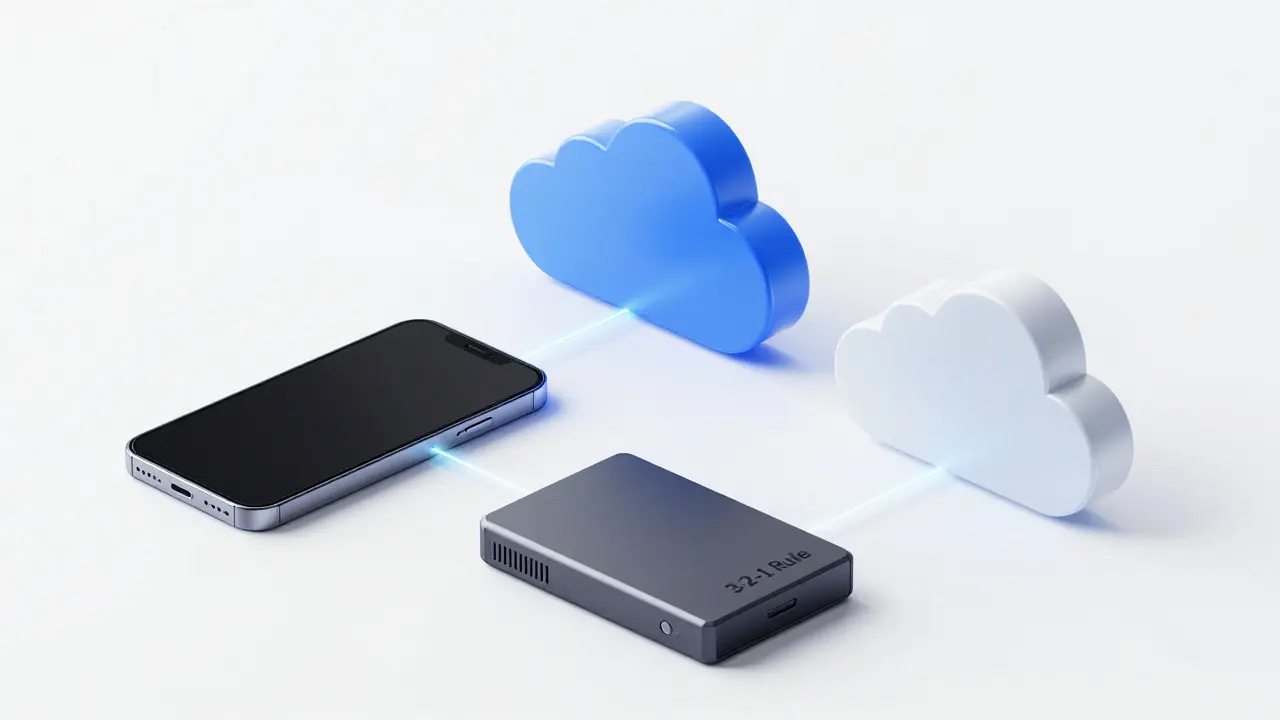
Professional data archivists use the 3-2-1 rule: keep three copies of your data, on two different types of media, with one copy offsite. You can adapt this for mobile photography without needing a server room. Here’s how it looks in practice:
- Copy 1 (Local): The original files on your phone. Keep these for immediate editing and sharing.
- Copy 2 (Local Secondary): A portable SSD or external hard drive. After every shoot, transfer files here. This acts as your primary offline archive.
- Copy 3 (Offsite): A cloud service like Google Drive, Dropbox, or Adobe Creative Cloud. Upload the raw files here automatically when connected to Wi-Fi.
This setup ensures that if your phone breaks, you still have the SSD. If your apartment floods, you still have the cloud. If the cloud provider has a glitch, you still have both local copies. It’s not complicated, but it requires discipline. Set a routine: after every session, transfer to the SSD before deleting from the phone. Don’t wait until the end of the month.
Choosing the Right Cloud Service
Not all cloud services are created equal, especially for photographers dealing with large file sizes. JPEGs are small, but RAW files can be 25MB to 100MB each. If you shoot video, we’re talking gigabytes per hour. You need a service that handles large files without throttling or excessive cost.
| Service | Best For | Free Tier Limit | Paid Plan Starting Price (Monthly) | Key Feature for Pros |
|---|---|---|---|---|
| Google One | iOS/Android integration | 15 GB (shared) | $1.99 (100GB) / $9.99 (2TB) | Seamless Photos app sync |
| Dropbox | Cross-platform collaboration | 2 GB | $11.99 (2TB) | Easy client sharing links |
| Adobe Creative Cloud | Lightroom workflow | 2 GB (Photos only) | $9.99 (100GB) / $19.99 (200GB+) | Direct Lightroom mobile integration |
| Backblaze B2 | Cost-effective bulk storage | N/A | $6/month (1TB) | Unlimited bandwidth, cheap API access |
If you use Lightroom Mobile, Adobe Creative Cloud is the natural choice. It integrates directly with your editing workflow, allowing you to edit RAW files on your phone and sync changes to your desktop instantly. However, if you work with clients who aren’t tech-savvy, Dropbox offers simpler sharing options. For pure storage capacity on a budget, Backblaze B2 is unbeatable, though it requires more technical setup to connect to mobile apps.
Automating the Workflow
The best backup plan is the one you never have to think about. Manual transfers fail because life gets busy. You forget, you get tired, you skip it. Automation solves this. Both iOS and Android have built-in tools, but third-party apps offer more control.
- Enable Auto-Sync: In your chosen cloud app, turn on background uploads over Wi-Fi. This ensures that any new photo taken while connected to home Wi-Fi is uploaded within minutes.
- Use Smart Folders: Create rules that move files based on date or location. For example, move all photos tagged “Client A” to a specific folder automatically.
- Schedule Offloads: Use apps like DigiByte or PhotoSync to transfer files to a computer or NAS (Network Attached Storage) when your phone connects to a specific network. This frees up phone space automatically.
A pro tip: don’t rely solely on Wi-Fi. If you’re shooting on location, consider using a cellular connection for critical backups, but monitor your data usage. A single 4K video clip can eat through several gigabytes of data. Alternatively, carry a portable Wi-Fi hotspot for dedicated backup sessions in the field.
Handling RAW Files and Metadata
Many mobile photographers stick to JPEGs because they’re smaller and easier to share. But if you want flexibility in post-processing, RAW files are essential. The challenge is that most phones don’t store RAW and JPEG simultaneously in a way that’s easy to manage. On iPhones, you can enable “Save Originals” in Camera settings to keep both HEIC and ProRAW formats. On Android, this varies by manufacturer, but Pixel phones offer excellent RAW support.
Metadata is another hidden pitfall. GPS tags, camera settings, and edit history are embedded in the file. If you lose the file, you lose the context. When backing up, ensure your cloud service preserves metadata. Some services strip EXIF data to save space, which can ruin your ability to sort photos later by lens used or aperture setting. Always verify that your backup solution retains full file integrity.

Common Pitfalls to Avoid
Even with a good plan, small mistakes can undermine your security. Here are the most common traps:
- Trusting the Phone’s Storage Alone: Phones break. Batteries degrade. Screens crack. If your only copy is on the device, you’re one drop away from disaster.
- Mixing Up Sync and Backup: As mentioned, syncing deletes files everywhere if deleted locally. Ensure you have a true backup destination that doesn’t mirror deletions unless you intend it.
- Ignoring File Formats: HEIC is efficient but not universally supported. If you send HEIC files to clients with older software, they might not open. Convert to JPEG for delivery, but keep HEIC/RAW for archives.
- Overlooking Video Storage: Video files are massive. A 10-minute 4K clip can be 1-2GB. Ensure your cloud plan can handle these spikes without hitting storage limits mid-upload.
Building Your Personal Protocol
There is no one-size-fits-all solution. Your workflow depends on your volume, budget, and tolerance for technical complexity. Start simple. Pick one cloud service and one external drive. Practice the transfer process until it becomes muscle memory. Then, expand.
Consider your geographic risks too. If you live in a flood-prone area, your offsite backup should be in a different region. Most major cloud providers offer regional redundancy, but check their terms. For photographers traveling internationally, ensure your cloud service is accessible in countries where you’ll be shooting. Some services are blocked or slow in certain regions.
Finally, test your backups. A backup you haven’t restored is not a backup. Once a quarter, pick a random photo from your archive and try to restore it from your cloud and your external drive. If it takes longer than five minutes, something is wrong. Fix it now, not when you need it most.
What is the best cloud service for mobile photographers?
The best service depends on your ecosystem. If you use Lightroom, Adobe Creative Cloud is ideal due to direct integration. For general-purpose storage and easy sharing, Dropbox is user-friendly. For maximum capacity at the lowest cost, Backblaze B2 is the top choice, though it requires more technical setup.
Should I back up RAW files to the cloud?
Yes, if you value post-processing flexibility. RAW files contain all sensor data, allowing for significant adjustments in exposure, white balance, and color. While they take up more space, they are the safest bet for long-term archival. Compressed JPEGs are fine for delivery, but keep RAWs in your backup.
How often should I back up my mobile photos?
Ideally, automatically in real-time via Wi-Fi sync. If manual, back up after every shoot session. Never let more than a week pass without a verified backup. The risk of data loss increases with time since the last backup.
Is iCloud enough for professional photographers?
For casual shooters, yes. For professionals, it’s risky. iCloud Photo Library syncs optimized images, not always the originals, depending on settings. Plus, if you delete a photo, it stays in “Recently Deleted” for 30 days, but beyond that, it’s gone. Use iCloud as part of a multi-layer strategy, not the sole backup.
How do I free up space on my phone without losing photos?
Once you confirm your photos are safely backed up to both cloud and external drive, you can delete them from your phone’s local storage. Use apps like PhotoSync or DigiByte to automate this offload process. This keeps your phone fast and responsive while ensuring your archive remains secure.