Ever taken a photo of your kid jumping off the couch, only to realize later that their face was half-blurred, eyes squeezed shut, or they’d already landed? You’re not alone. Most people think they missed the moment because they weren’t fast enough. But the real issue isn’t timing-it’s relying on a single shot when the moment is happening in fractions of a second.
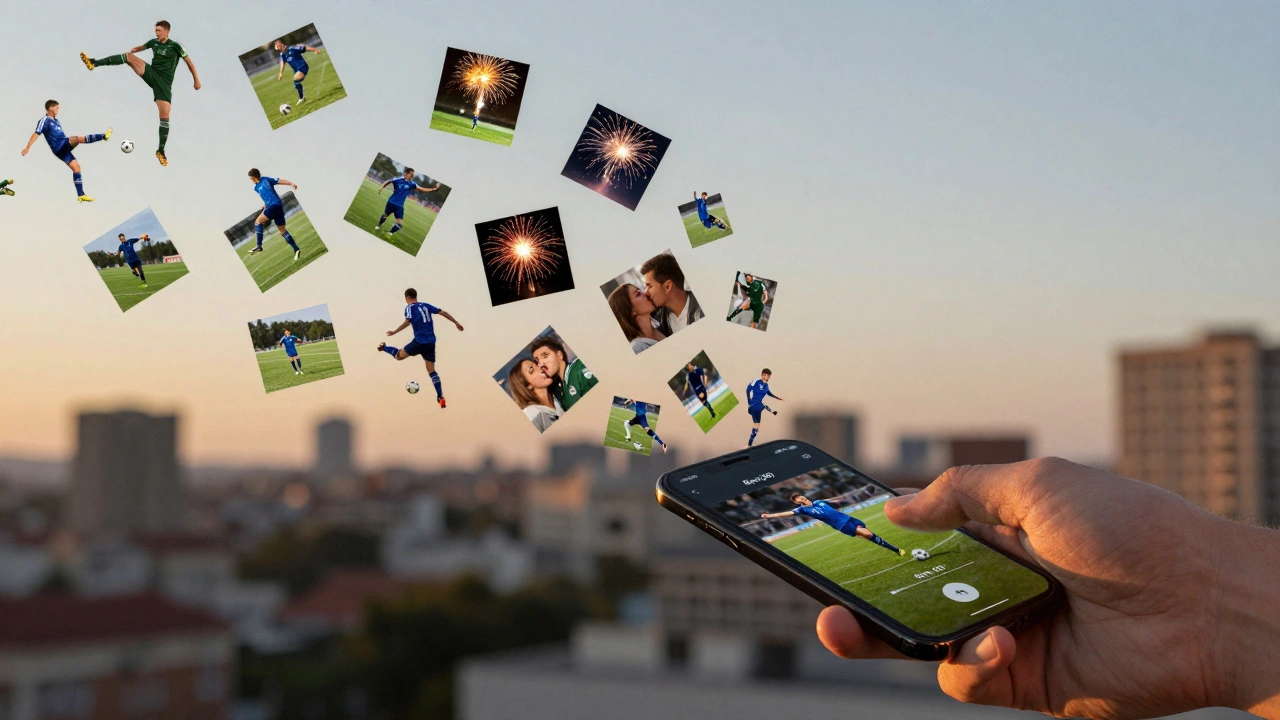
Burst mode on your phone changes everything. It doesn’t just take more pictures. It gives you a chance to pick the exact frame where everything lines up: eyes wide open, arms stretched, smile perfect, motion frozen. This isn’t a fancy feature for pros. It’s built into every modern smartphone because it works-every single time.
How Burst Mode Actually Works
Burst mode isn’t magic. It’s physics and processing working together. When you hold down the shutter button (or volume button), your phone’s camera starts snapping images as fast as its hardware allows. Most phones capture between 5 and 10 frames per second. High-end models like the iPhone 15 Pro or Samsung Galaxy S24 Ultra can hit 20-30 fps. That means in one second, you get 20 chances to catch the perfect moment.
Behind the scenes, your phone uses a temporary storage buffer to hold all those images before saving them to your gallery. This buffer fills up fast. Once it’s full, shooting stops until the phone processes and saves the images. That’s why you can’t hold the button forever. But you don’t need to. You only need a few seconds to capture the peak of the action.
The key? Your phone doesn’t just take pictures-it analyzes them. It looks for sharpness, motion blur, and facial expression. On iPhones, after you finish shooting, the system automatically suggests the best frame. On Android, you get a stack of photos you can swipe through and pick manually. Either way, you’re no longer guessing which shot was best.
When to Use Burst Mode (and When Not To)
Burst mode shines when things move fast. Think:
- Kids playing-jumping, running, laughing mid-air
- Pets chasing a ball or leaping off the couch
- Sports-soccer kicks, basketball dunks, baseball swings
- Fireworks exploding, confetti falling, balloons popping
- Street photography-someone catching a bus, a cyclist mid-turn
- Group photos-where someone always blinks or looks away
It’s useless for static scenes. A portrait of your friend sitting still? One shot is fine. A landscape at sunset? No need. Burst mode is for moments that last less than a second. If you’re shooting something slow-moving, you’re just wasting storage space.
How to Turn On Burst Mode (iPhone & Android)
On iPhone (XS, XR, and newer):
- Open the Camera app.
- Swipe left on the shutter button. That’s it-you’re in burst mode.
- Hold your finger down to keep shooting. Lift it to stop.
- Want to use the volume button instead? Go to Settings > Camera > Use Volume Up for Burst and toggle it on. Now, hold the volume up button to capture.
On Samsung and most Android phones:
- Open the Camera app.
- Tap the gear icon to open Settings.
- Scroll to Pictures or Shutter Settings.
- Find Swipe Shutter Button to Take Burst Shot and turn it on.
- Back in the camera app, swipe down on the shutter button to start. Hold it to keep shooting.
Some Android phones (like Google Pixel) let you just press and hold the shutter button without swiping. Check your camera settings if the swipe doesn’t work.
How to Pick the Best Shot
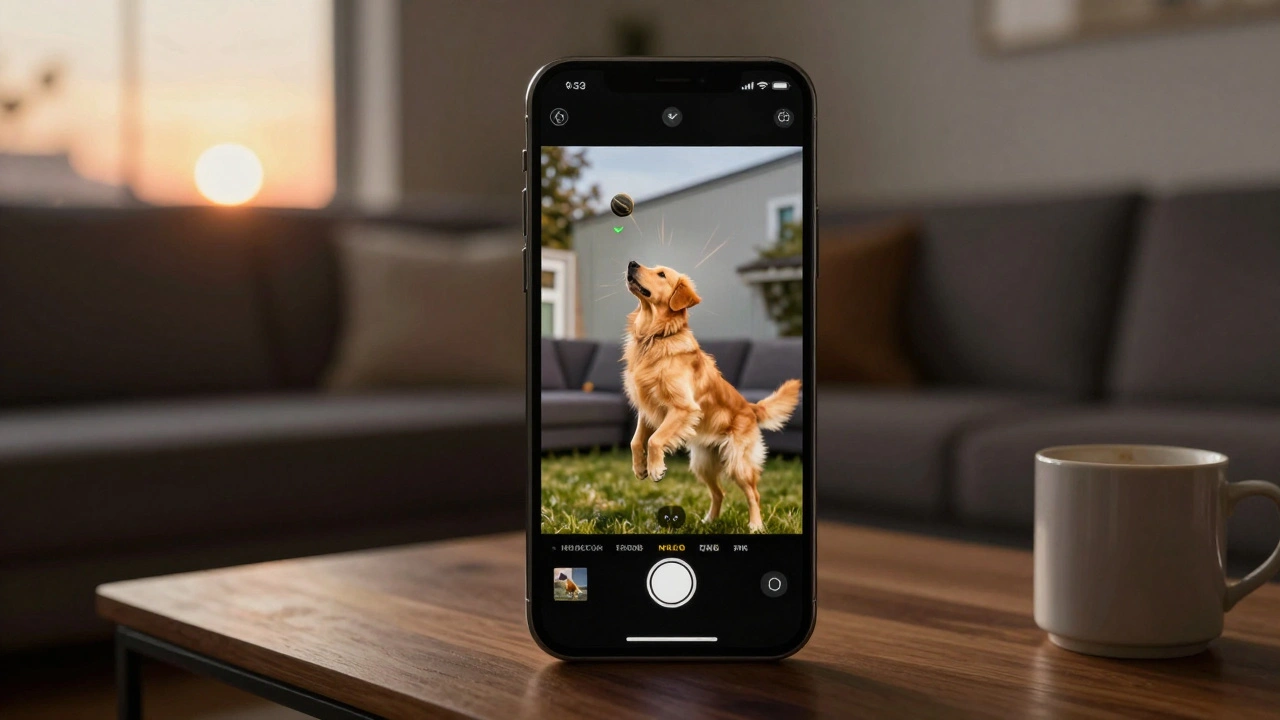
After you finish a burst, your phone groups the photos into a stack. On iPhone, you’ll see a small icon in the corner that says Burst (15). Tap it.
The phone opens a preview showing all frames side by side. It automatically highlights the best one-usually the clearest, most focused image with the best expression. You can swipe left and right to scroll through. Tap Keep Favorite to save just the one you like. Tap Select All if you want them all. Or tap individual frames to keep specific ones.
On Samsung and Android: Tap the small grey icon at the bottom of the photo-it looks like stacked photos with a number. You’ll see all the frames. Tap the checkmark on the ones you want to keep. Tap Done to save them. Everything else gets deleted.
Pro tip: Don’t delete the whole burst right away. Sometimes the second-best shot is better than the auto-selected one. Give yourself a few minutes to review before clearing it.
Settings That Make Burst Mode Work Better
Just using burst mode isn’t enough. You need to set your phone up for success.
- Shutter speed: Most phones auto-set this, but if your phone lets you adjust it manually (like Pro mode on Samsung or ProCamera on iPhone), set it to 1/500s or faster. For really fast action-like a soccer kick-go for 1/1000s.
- Autofocus: Make sure it’s set to Continuous AF (or AI Focus). This keeps the subject sharp as it moves. Single AF will lock on one spot and miss the action.
- Storage: Burst mode eats space. A 10-second burst at 30 fps = 300 photos. Each one is 3-5 MB. That’s 1.5 GB in one go. Make sure you have room. Use cloud backup or delete old videos to free up space.
- Lighting: Burst mode needs light. Low light = slower shutter = blur. If it’s dim, turn on flash (if it’s safe) or move closer to a window. Better light means sharper frames.
Common Mistakes (And How to Avoid Them)
Even with burst mode, people mess up. Here’s what goes wrong-and how to fix it.
- Starting too early: Holding the button the moment the kid runs into the frame? You’ll fill the buffer before the best moment happens. Wait. Let the action build. Start shooting just before the peak.
- Not stabilizing: Shaky hands = blurry frames. Even with burst, motion blur ruins everything. Lean against a wall. Rest your elbow. Use a tripod if you’re serious.
- Ignoring the buffer: If your phone stops shooting suddenly, it’s full. Don’t panic. Wait 5-10 seconds. It’ll resume. Plan your bursts. Don’t shoot 20 seconds straight.
- Deleting too fast: You might think the first frame is the best. But sometimes the last one is better. Review before you delete.
Why This Feature Changed Mobile Photography Forever
Before burst mode, action shots were the domain of DSLRs with fast sensors and expensive lenses. You needed training, gear, and timing. Now, your phone does it for you. A child’s first step, a dog mid-leap, a surprise kiss-these moments are gone in a blink. But with burst mode, you don’t have to blink.
It’s not about taking more photos. It’s about taking better ones. The difference between a good photo and a great one is often a single frame. Burst mode gives you the power to find it.
And it’s not going away. Every new phone gets faster, smarter, and more efficient at burst shooting. Apple’s Smart HDR + Deep Fusion, Google’s Pixel motion detection, Samsung’s AI scene optimization-they all work behind the scenes to make your burst shots cleaner, brighter, and sharper.
Next time you see something worth capturing, don’t just tap. Hold. Let the phone do the work. You’ll be surprised how many times it gets it right.
Does burst mode use more battery?
Yes, but not significantly. Burst mode uses more processor power and memory, which draws extra battery. But since bursts last only a few seconds, the impact is minimal-usually less than 1-2% per 10-second burst. If you’re shooting for hours, you’ll notice, but for casual use, it’s negligible.
Can I use burst mode with Portrait mode?
No. Most phones disable burst mode when Portrait mode is active. That’s because Portrait mode uses multiple frames to create depth effects, and combining it with burst would overload the processor. If you need action shots with background blur, use Normal mode and apply blur later in editing.
Why does my phone stop shooting after 10 photos?
That’s the buffer filling up. Lower-end phones have smaller buffers and slower storage. High-end phones can handle 50-100+ frames before stopping. If you’re hitting limits often, make sure you’re using a fast memory card (UHS-I or higher) and that your phone’s software is updated. Newer iOS and Android versions optimize buffer management.
Is burst mode the same as video mode?
No. Video captures motion as a continuous stream. Burst mode captures discrete, high-resolution still images. You can’t extract a single frame from video and get the same quality as a burst photo. A 12MP still from burst mode has way more detail than a frame from 4K video.
Can I use burst mode in low light?
You can, but results suffer. Low light forces slower shutter speeds, which causes blur even in burst mode. If you must shoot in dim conditions, use a flash or stabilize the phone. Some phones (like iPhone 15 Pro) use Night Mode with burst, but it’s slower and only works for static scenes. For moving subjects, avoid low-light bursts.