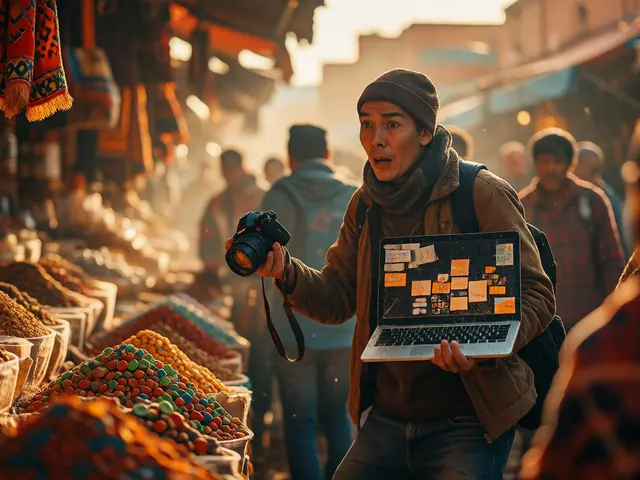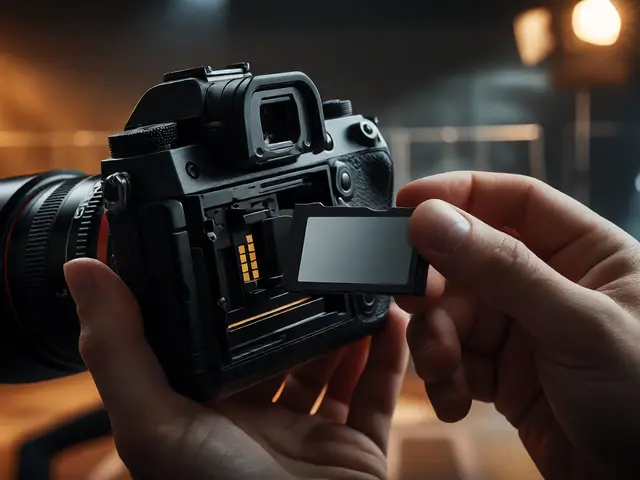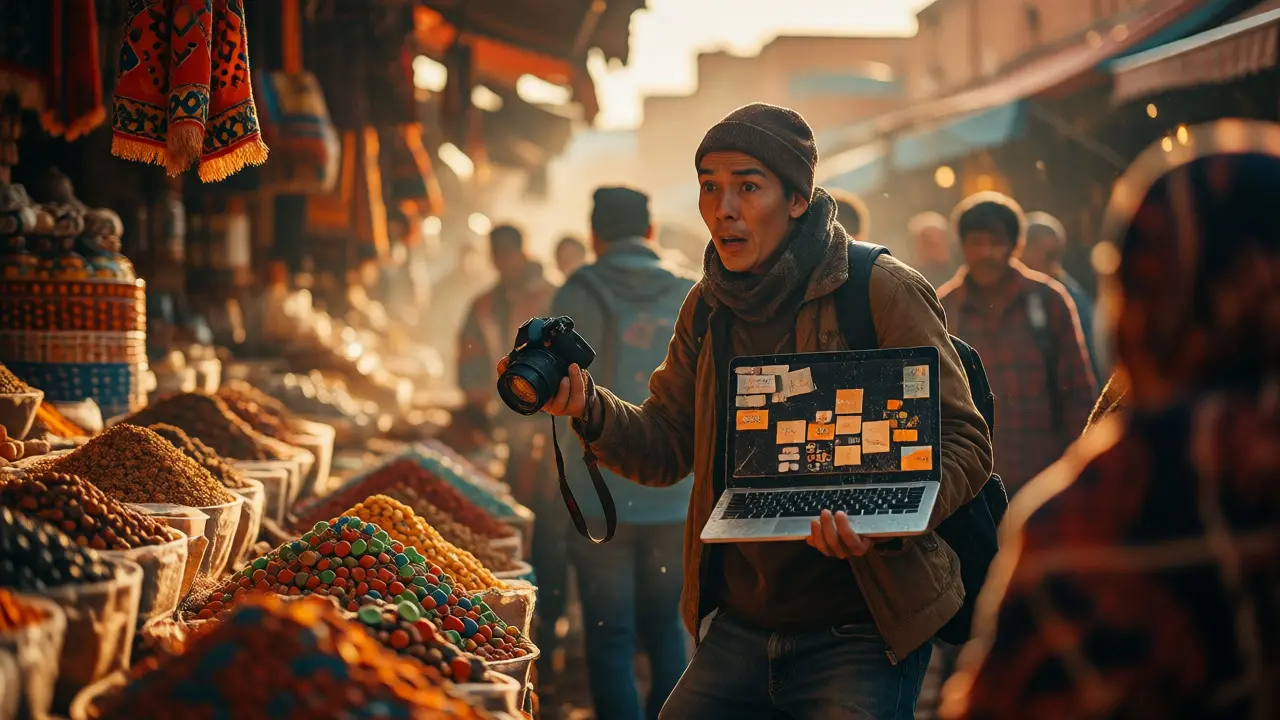
You are standing in a crowded market in Marrakech. The light is perfect. You just captured the shot of your life-a candid moment that took three days to find. Then, disaster strikes. Your camera card corrupts, or worse, you drop your laptop into a fountain while trying to upload files at a café. If you haven't set up a robust travel photo backup system, that memory isn't just lost; it's gone forever.
Most photographers rely on luck. They shoot, they wait until they get home, and they hope nothing happens during transit. But professional travel photography demands a different approach. You need redundancy that works when you have no power, no internet, and no safety net. This guide breaks down exactly how to protect your images on the road using a mix of hardware redundancy and smart cloud workflows.
The Reality of Data Loss on the Road
Data loss isn't rare; it's inevitable if you don't plan for it. SD cards fail. Hard drives get knocked off tables. Phones get stolen. According to industry estimates from data recovery firms like DriveSavers, nearly 30% of computer users experience some form of data loss annually. For travelers, the risk multiplies because your equipment moves constantly.
Think about the specific risks you face while traveling:
- Physical Damage: Dropping gear, water exposure, extreme heat in a parked car.
- Theft: Laptops and cameras are high-value targets in tourist hubs.
- Corruption: Removing a card too quickly or battery failure mid-write.
- Human Error: Accidentally formatting a card before backing up.
If you only keep one copy of your photos, you are playing Russian roulette with your memories. The goal isn't just to save files; it's to ensure that even if two things go wrong simultaneously, you still have your work.
Mastering the 3-2-1 Backup Rule for Travel
You've heard of the 3-2-1 backup rule. It’s the gold standard for data protection. But applying it on the road requires adaptation. Normally, this means three copies of your data, on two different media types, with one copy offsite. When you're backpacking through Southeast Asia, "offsite" doesn't mean a server in another city; it means a cloud upload or a physical drive kept by a friend back home.
Here is how to adapt the rule for travel:
- Copy 1 (The Original): This lives on your camera's SD or CFexpress card. Do not format this card until you have successfully backed up the files to at least two other locations.
- Copy 2 (Local Physical Backup): This should be a portable hard drive or SSD. Ideally, use a second type of media here. If your primary backup is an HDD, make your secondary backup an SSD or even a USB stick for critical shots.
- Copy 3 (Offsite/Cloud): This is your insurance policy against theft or total physical loss of your bag. If you can’t upload immediately due to poor Wi-Fi, this copy waits until you reach a reliable connection point.
The key takeaway? Never let all three copies live in the same bag. If your backpack gets stolen, you lose everything if your external drive is inside it. Keep one backup drive in a separate bag, a hotel safe, or with a travel companion.
Hardware Choices: Portable Drives vs. SSDs
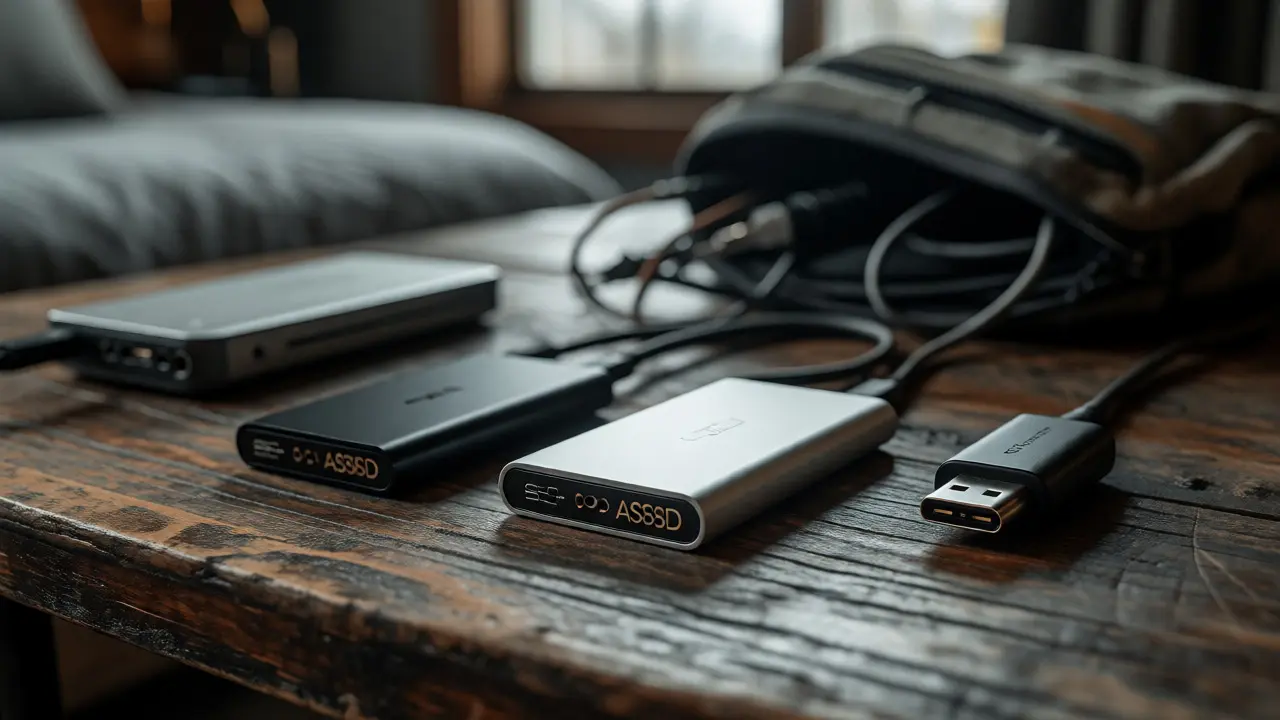
Choosing the right hardware matters more than you think. Traditional spinning hard disk drives (HDDs) are cheap but fragile. They contain moving parts that can break if dropped. In contrast, Solid State Drives (SSDs) have no moving parts, making them far more resistant to the bumps and jostles of travel. They are also faster, which matters when you’re uploading large RAW files over slow hotel Wi-Fi.
Let’s compare the common options:
| Feature | Portable HDD | Portable SSD | USB Flash Drive |
|---|---|---|---|
| Durability | Low (fragile mechanics) | High (shock-resistant) | Medium (small, easy to lose) |
| Speed | Slow (5400 RPM typical) | Fast (up to 10x faster) | Variable (often slow writes) |
| Cost per TB | $20 - $30 | $80 - $120 | $10 - $20 |
| Best For | Archiving old trips | Daily active backups | Emergency small files |
For most travelers, a ruggedized SSD like the SanDisk Extreme Pro or Samsung T7 is the best investment. Yes, they cost more upfront. But consider the cost of losing a week's worth of wedding client photos or once-in-a-lifetime family vacation shots. The peace of mind is worth the extra fifty dollars.
A pro tip: Buy two identical small-capacity SSDs (e.g., 1TB each) rather than one massive 2TB drive. Why? Because you can keep one in your carry-on and the other in your checked luggage or daypack. If one bag goes missing, you still have a full backup in the other.
The Role of Cloud Storage in Travel Workflows
Cloud storage solves the biggest vulnerability of travel: physical loss. If your entire kit bag disappears in a taxi in Bangkok, local backups disappear with it. A cloud backup does not.
However, uploading RAW files from a remote village is painful. Here is how to manage cloud storage for photographers effectively on the road:
- Selective Syncing: Don't upload every single blurry test shot. Use software that allows you to flag keepers first, then sync only those.
- Mobile Apps: Services like Adobe Creative Cloud, Dropbox, or Google Photos allow direct uploads from your phone. If you shoot with a mirrorless camera, transfer JPEG previews to your phone via Wi-Fi and upload those. They serve as a low-res safety net until you can upload the full RAW files later.
- Background Uploads: Configure your apps to pause uploads when you are on cellular data unless you have an unlimited plan. Hotel Wi-Fi is often free but unreliable; schedule large uploads for overnight if possible.
Be realistic about bandwidth. Uploading 50GB of RAW files might take six hours on average hotel internet. If you are shooting heavily, you might not finish uploading before you leave. That is why local redundancy remains critical. The cloud is your final layer, not your daily driver.
Streamlining the Process with Card Readers and Duplicators
Time is money, especially when you are tired after a long day of hiking. Fiddling with cables and menu systems slows you down. Dedicated hardware can speed up your on-the-road redundancy workflow significantly.
Consider investing in a standalone file duplicator. Devices like the Nexto DI or older models from HyperDrive allow you to copy SD cards directly to an external drive without needing a laptop. You plug in the card reader and the drive, press a button, and walk away. It frees up your laptop for editing or relaxation.
If you prefer using a laptop, streamline your software setup:
- Create a dedicated folder structure on your drive (e.g., `TripName > Date > Shot`).
- Use Lightroom Classic or Capture One to import directly to two destinations simultaneously if supported, or use a script.
- Rename files upon import to prevent duplicates later.
This reduces human error. The fewer clicks you make, the less likely you are to accidentally delete the source card before the backup is verified.

Security and Privacy Considerations
Travel exposes your data to different threats than office work. Public Wi-Fi networks in airports and cafes are notorious for snooping. If you are uploading sensitive client work or personal family photos, encryption is non-negotiable.
Most modern cloud providers encrypt data in transit (HTTPS/TLS). However, you control the keys on your local drives. Use encryption software like VeraCrypt or built-in BitLocker (Windows) and FileVault (Mac) to lock your portable drives. If your SSD is stolen, the thief cannot access your files without the password.
Also, be mindful of border crossings. Some countries require customs agents to inspect electronic devices. While rare, having encrypted containers ensures that casual inspections don't expose your entire library. Always have a printed list of your file hashes or checksums if you need to prove integrity after a long trip.
Troubleshooting Common Backup Failures
Even the best plans hit snags. Here are quick fixes for common travel tech issues:
- Wi-Fi Too Slow: Switch to tethering via mobile hotspot if you have a good signal. Or, prioritize uploading only JPEGs for social sharing and defer RAW uploads until you reach a city with better infrastructure.
- Card Not Recognizing: Carry a spare USB-C to SD card reader. Cables break. Readers fail. Having a backup reader in your pocket saves the day.
- Battery Drain: Backing up drains laptop batteries fast. Invest in a high-capacity power bank (20,000mAh+) that supports pass-through charging so you can charge your laptop and camera simultaneously.
Remember, technology fails. Have a paper notebook as a final analog backup. Jot down descriptions of key shots if digital methods completely collapse. It sounds primitive, but it beats crying over corrupted files.
Do I really need a cloud backup if I have two hard drives?
Yes. Two hard drives in your bag are vulnerable to the same physical event-like theft or fire. If someone steals your bag, both drives are gone. A cloud backup exists outside your physical location, providing true offsite protection.
Is it safe to format my SD card after backing up to one drive?
No. You should never format a card until you have verified that the files exist on at least two other locations. Verify by opening a few random files from the backup drive. Only then is it safe to clear the card.
What is the best portable SSD for travel photography?
Look for rugged, compact SSDs like the SanDisk Extreme Pro V2 or Samsung T7 Shield. Key features to look for include IP-rated water/dust resistance, shock resistance, and USB 3.2 Gen 2 speeds for fast transfers.
How do I handle backups when there is no internet access?
Focus entirely on local redundancy. Ensure you have two physical copies on different drives. Keep these drives separated physically (one in your main bag, one in a daypack). Once you reach a location with internet, prioritize uploading the oldest files first to clear space.
Should I back up video files differently than photos?
Video files are much larger, so cloud uploads can be prohibitive on limited data plans. Prioritize local SSD backups for video. If you must use the cloud, consider compressing proxies for initial backup and uploading the master files only when you have stable, high-speed broadband.