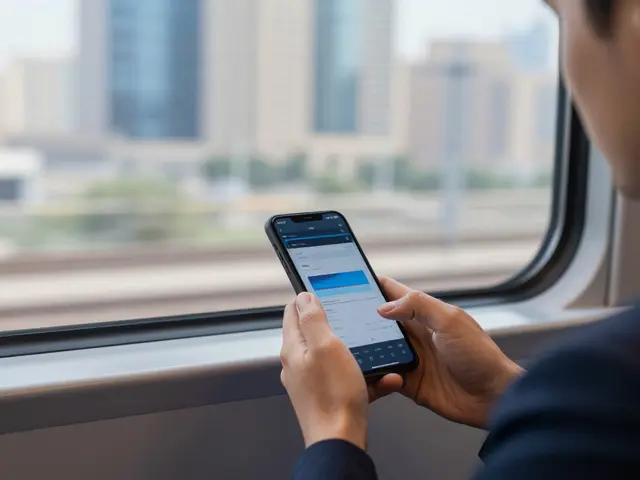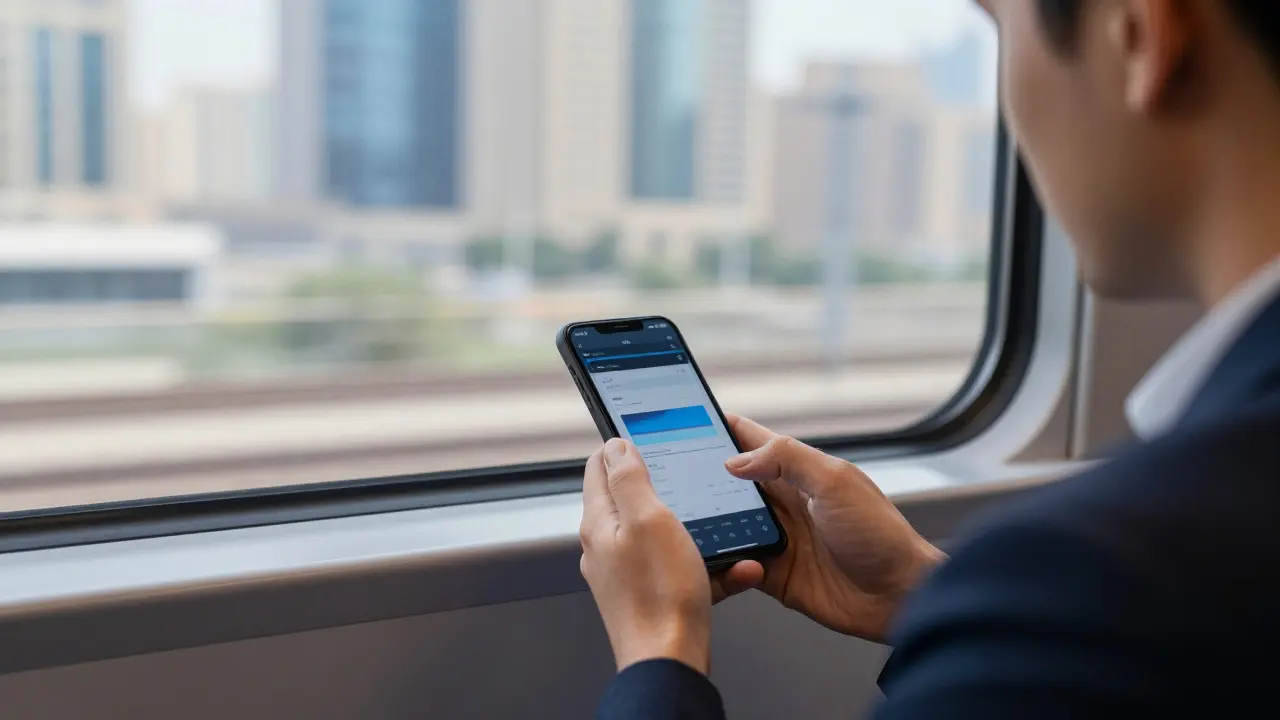
Imagine you are on a train, staring at a client brief on your phone. You make three quick edits to the layout, hit save, and expect to see those changes when you sit down at your studio desk an hour later. But the file on your desktop is still the old version. The client sends a new request while you are stuck reconciling two different files. This friction is exactly what modern Mobile-to-Desktop Sync is designed to eliminate. It is not just about having the same file on two screens; it is about maintaining a single source of truth that updates instantly, regardless of where you are working from.
Why Your Current Workflow Is Leaking Time
Most professionals still rely on manual transfers or basic email attachments to move work between devices. This approach creates what we call "version drift." When you edit a document on a tablet during a meeting and then try to continue on a laptop without syncing properly, you risk overwriting changes or losing the most recent edits. In 2026, with hybrid work becoming the norm, this inefficiency costs teams hours every week. The core problem isn't the technology itself, but the lack of a unified logic for how files behave across different operating systems.
The shift toward seamless editing requires moving away from static files and toward dynamic data streams. Instead of treating a PDF or a design file as a fixed object, modern workflows treat them as living documents that can be accessed, modified, and saved from any endpoint. This change in mindset is crucial for anyone who wants to stop fighting their tools and start focusing on the actual creative or analytical work.
The Core Mechanics of Real-Time Synchronization
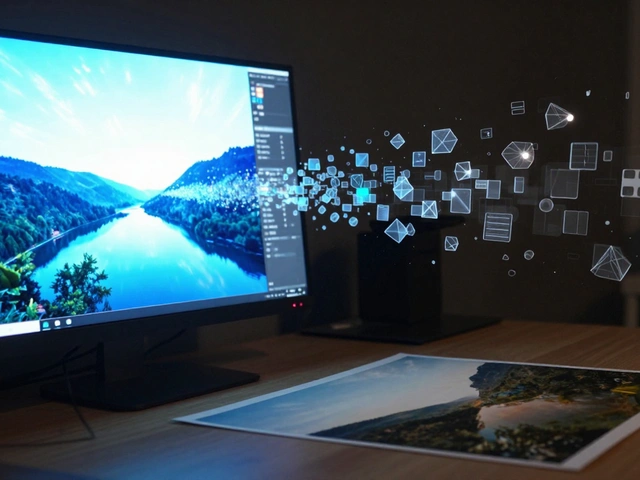
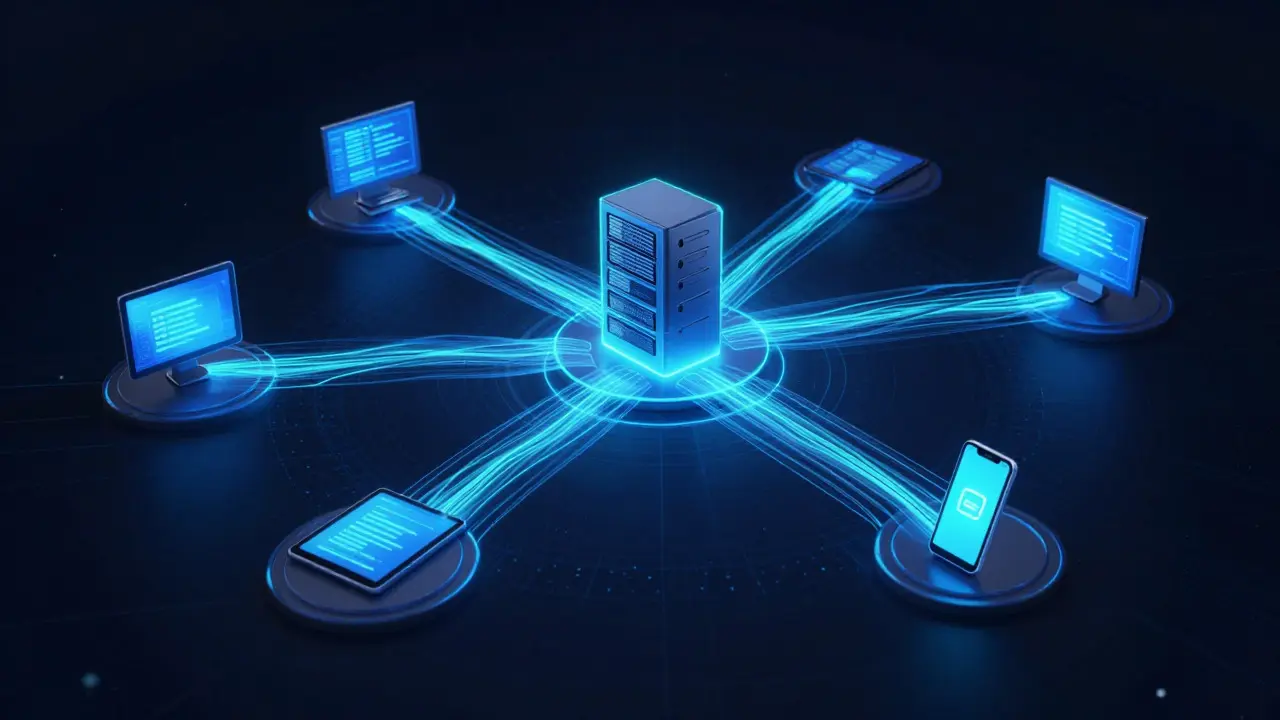
At its heart, mobile-to-desktop sync relies on cloud-based infrastructure that acts as a middleman between your devices. When you make a change on your phone, the application doesn't just save it locally; it pushes a delta (the specific change) to a central server. That server then broadcasts the update to all other connected devices. This process happens in milliseconds, which is why it feels instant to the user.
- Delta Encoding: Only the changed parts of the file are transmitted, saving bandwidth and processing power.
- Conflict Resolution: If two people edit the same line simultaneously, the system uses algorithms like Operational Transformation to merge changes without data loss.
- Offline Caching: A local copy of the file is stored on each device, allowing you to work without an internet connection and sync automatically once you reconnect.
Understanding these mechanics helps you choose the right tools. Not all sync engines are created equal. Some prioritize speed, while others prioritize security. For example, a legal team might need end-to-end encryption where the server never sees the raw content, whereas a video production team might prioritize high-bandwidth transfer speeds for large media files.
Choosing the Right Tools for Cross-Device Editing
The market in 2026 is saturated with options, but they fall into three distinct categories based on their primary strength. Choosing the wrong one can create more problems than it solves. Here is how they compare in practical scenarios:
| Platform Type | Best For | Sync Speed | Offline Capability | Key Limitation |
|---|---|---|---|---|
| Document-Centric Suites | Text, spreadsheets, presentations | Instant | Excellent | Poor support for heavy media files |
| Asset Management Systems | Video, photography, large binaries | Moderate (progressive) | Good (proxy files) | Complex setup for non-technical users |
| General File Sync | Personal files, small teams | Fast | Variable | Limited real-time collaborative editing features |
If your work involves heavy text collaboration, such as marketing copy or code reviews, a document-centric suite is your best bet. These platforms have refined their conflict resolution engines over decades, making simultaneous editing feel natural. However, if you are dealing with 4K video footage or high-resolution photography, you need an asset management system. These tools use proxy files-lower-resolution versions of your assets-to allow smooth playback and editing on mobile devices, while the full-quality files remain in the cloud or on a local server.
Setting Up a Robust Mobile-First Workflow
Once you have selected your platform, the next step is configuring it for reliability. A common mistake is assuming that "synced" means "safe." In reality, you need to establish a hierarchy of trust for your data. Start by identifying which devices will be your primary editing stations and which will be secondary viewing or input devices.
- Define Primary Devices: Designate your desktop workstation as the master environment for final exports and complex rendering. Use your mobile device for approvals, quick notes, and minor adjustments.
- Configure Offline Rules: Decide which folders should always be available offline. On iOS and Android, this usually means selecting specific projects rather than syncing your entire drive, which saves storage space.
- Establish Naming Conventions: Even with sync, clear naming prevents confusion. Use date stamps or version numbers in file names if your tool doesn't handle version history automatically.
- Test Conflict Scenarios: Before going live with a team, test what happens when two people edit the same section. Most tools handle this well, but knowing the behavior reduces anxiety during tight deadlines.
This setup phase takes only a few hours but pays off daily. It transforms your devices from isolated silos into a cohesive ecosystem where information flows freely without manual intervention.
Common Pitfalls and How to Avoid Them
Even with the best tools, human error can break the sync chain. One frequent issue is "zombie files," where a deleted file on one device reappears on another because the deletion wasn't synced before the network dropped. To avoid this, enable trash bin retention periods in your sync settings so that accidental deletions can be recovered within a 30-day window.
Another pitfall is ignoring bandwidth constraints. If you are constantly syncing large video files over public Wi-Fi, you may experience throttling or timeouts. In these cases, switch to a progressive download strategy. Let the mobile device download a low-res preview first, and only fetch the full file when you are on a stable, high-speed connection. This ensures you can always view your work, even if you can't fully edit it immediately.
Finally, don't neglect security. Mobile devices are lost or stolen more often than desktops. Ensure that your sync solution supports remote wipe capabilities and requires strong authentication, such as biometrics or multi-factor authentication, to access sensitive project files. Security shouldn't be an afterthought; it should be built into your sync architecture from day one.
Future-Proofing Your Cross-Device Strategy
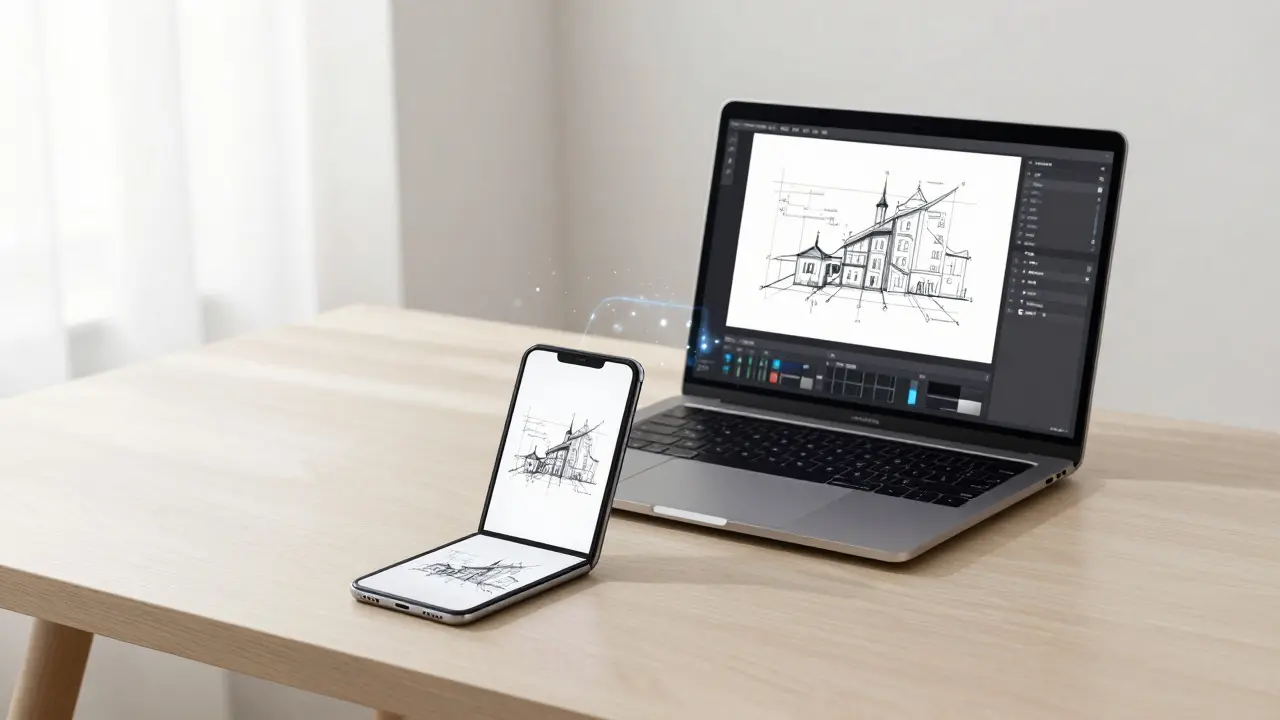
As we move deeper into 2026, the line between mobile and desktop is blurring further. Foldable phones with larger screens and lightweight laptops with powerful processors mean that the distinction between "mobile editing" and "desktop editing" is becoming less relevant. What matters is consistency. Your workflow should be agnostic to the hardware you are using. Whether you are sketching on a tablet, typing on a laptop, or reviewing on a phone, the experience should feel identical.
To stay ahead, keep an eye on AI-assisted sync features. Newer platforms are beginning to use machine learning to predict which files you will need next and pre-cache them on your devices. They also analyze your editing patterns to suggest optimal times for heavy sync operations, such as overnight backups. By adopting these intelligent features early, you can reduce latency and improve overall productivity significantly.
Does mobile-to-desktop sync require an internet connection?
Not necessarily. Modern sync solutions use offline caching, allowing you to edit files without an internet connection. Changes are saved locally and synchronized automatically once you reconnect to the network. However, real-time collaboration with other users does require an active connection.
What happens if I edit the same file on two devices at once?
This depends on the software. Document-centric tools use conflict resolution algorithms to merge changes seamlessly. General file sync tools may create duplicate versions or overwrite one file with the other. Always check the specific conflict handling policy of your chosen platform before relying on it for critical work.
Is it safe to store sensitive business files in the cloud?
Yes, provided you use a reputable provider with end-to-end encryption. Look for platforms that offer zero-knowledge encryption, where only you hold the key to decrypt your files. Additionally, enable multi-factor authentication and remote wipe features to protect against device loss.
How much storage do I need on my mobile device for sync?
It varies by workload. For text-based documents, 5GB is usually sufficient for offline access. For video or photography, you may need 100GB or more if you want to keep full-quality files offline. Alternatively, use selective sync to keep only proxies on your phone and stream full files from the cloud when needed.
Can I use different sync apps for different types of files?
Yes, and many professionals do. Using a document suite for text and an asset manager for media is a common hybrid approach. Just ensure that both tools integrate well with your operating system and that you have a clear strategy for moving files between them if necessary.