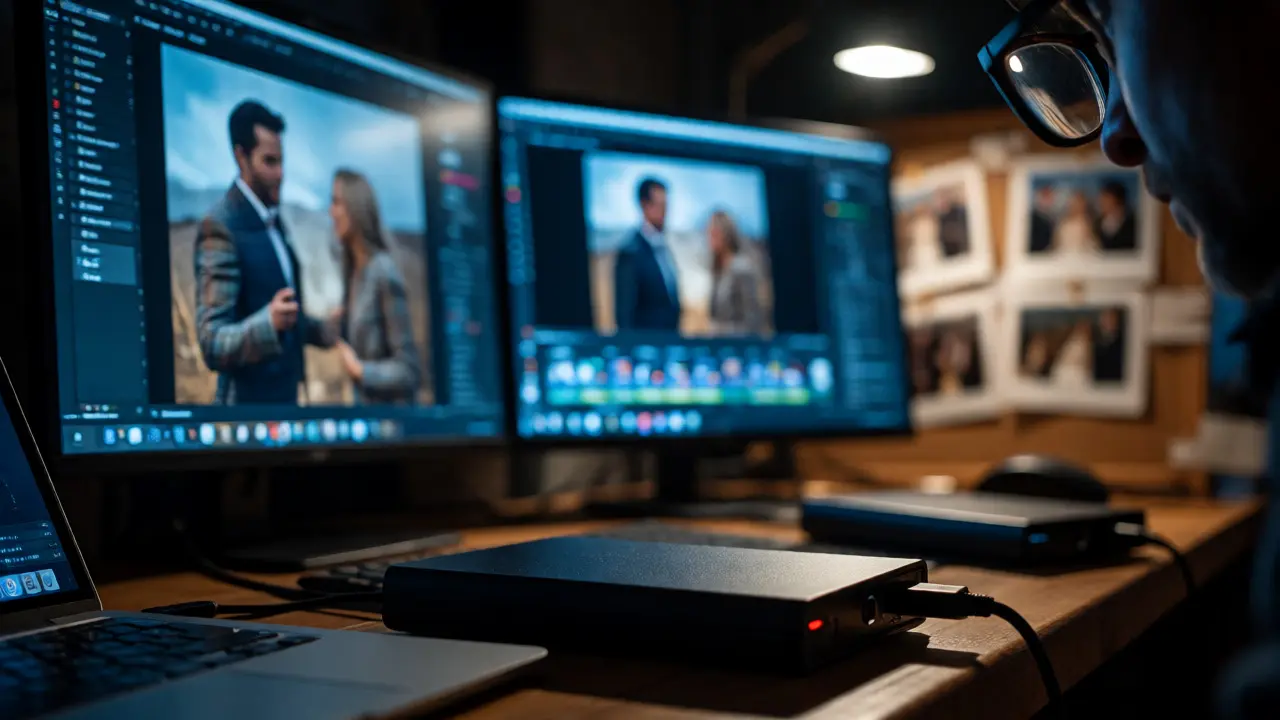
You just spent six hours editing a wedding shoot. You hit "Save," close Lightroom, and go to bed feeling accomplished. Then, at 3 AM, your hard drive makes that distinct, terrifying clicking sound. If you haven't backed up your files yet, those images are gone. Not blurred, not corrupted-gone. This isn't a hypothetical; it's the nightmare scenario every photographer faces eventually. Photographer backup strategies aren't just about saving space; they're about insurance against hardware failure, theft, fire, and human error.
The good news? Protecting your photo archive doesn't require a degree in computer science or a massive budget. It requires a system. A reliable, boring, repeatable system. Here is how you build one that actually works when disaster strikes.
The Non-Negotiable 3-2-1 Backup Rule
If you remember only one thing from this article, let it be this: the 3-2-1 rule is the gold standard for data preservation. It’s simple, effective, and covers almost every risk profile. Here’s what it means:
- 3 copies of your data: Your original file plus two backups. Never rely on a single copy.
- 2 different media types: Don’t keep everything on identical hard drives. Mix physical drives with cloud storage or optical media if you’re archival-focused.
- 1 copy offsite: If your studio burns down, your local backups burn with it. One copy must live outside your building.
Why does this matter? Hard drives fail. SSDs fail. Cloud services have outages (rare, but real). Theft happens. By diversifying where and how your data lives, you eliminate single points of failure. If your primary NAS dies, you have a local external drive. If your house floods, you have the cloud copy. It’s redundancy, plain and simple.
Choosing Your Primary Storage: NAS vs. External Drives
Where should your main working library live? Most serious photographers use either a Network Attached Storage (NAS) device or a high-capacity external RAID array. Let’s break down the trade-offs.
| Feature | NAS Device | External RAID Drive |
|---|---|---|
| Accessibility | High (Access from any device on network) | Low (Must plug into specific computer) |
| Cost | Higher upfront ($500-$1,500+) | Lower upfront ($150-$400) |
| Redundancy | Built-in RAID (usually) | Varies (Check specs carefully) |
| Setup Complexity | Moderate (Requires IP configuration) | Easy (Plug and play) |
| Best For | Teams, multi-device access, long-term archives | Solo shooters, travel kits, budget-conscious pros |
A NAS is a small server that sits on your router. Brands like Synology or QNAP dominate this space. The biggest advantage? You can access your catalog from your laptop, desktop, or even a tablet without carrying heavy drives around. Plus, most NAS units support RAID 1 or RAID 5, meaning if one drive fails, you swap it out and rebuild the array without losing data. That peace of mind is worth the extra cost.
External drives are cheaper and simpler. But beware: many consumer-grade external drives are single-drive enclosures. They look like RAID cases but lack true redundancy. Always check the spec sheet. If it says "RAID-ready" but comes with one drive, it’s not redundant until you add more.
The Cloud Component: Offsite Protection Done Right
Local backups protect against accidental deletion and drive crashes. Cloud backups protect against catastrophe. But not all clouds are created equal for photographers.
General-purpose services like Dropbox or Google Drive often struggle with large RAW files. Sync conflicts, slow upload speeds, and version history limits can become bottlenecks. Instead, look at photography-specific platforms like Backblaze, SmugMug, or Adobe Creative Cloud storage.
Backblaze, for instance, offers unlimited backup for a flat fee (around $9/month as of late 2026). It runs silently in the background, backing up every file on your selected drives. It’s not designed for collaboration or quick sharing-it’s a set-it-and-forget-it safety net. SmugMug combines hosting and backup, which is great if you also sell prints online. Adobe CC includes 20GB to 1TB depending on your plan, syncing directly with Lightroom Classic catalogs.
Pro Tip: Test your restore process. Many photographers back up for years but never verify if the files are readable. Download a random folder once a quarter. Open the RAW files. If they open, you’re good. If they don’t, fix it now.
Automating the Workflow: Remove Human Error
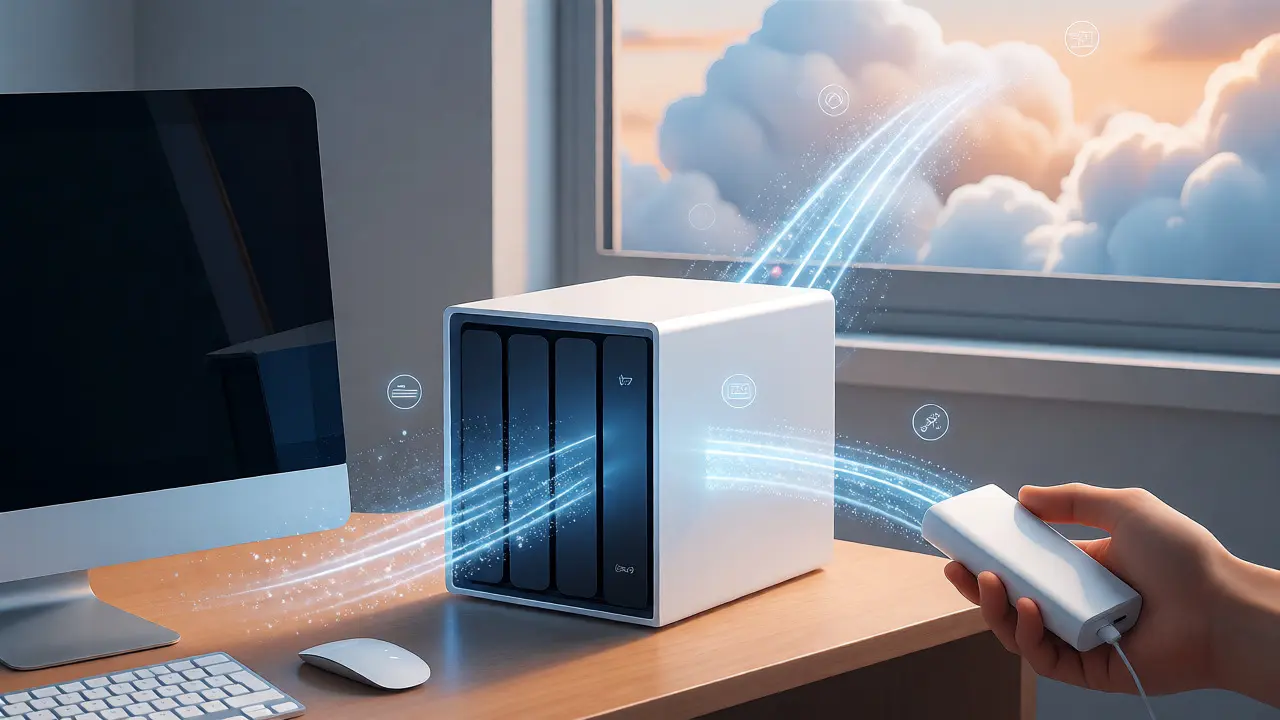
Manual backups fail because we forget. We get busy. We think, "I'll do it tonight," and then fall asleep. Automation is your best friend.
Use software to handle the heavy lifting. Tools like Carbon Copy Cloner (Mac) or Veeam Agent (Windows) can schedule nightly backups from your working drive to your local backup drive. Set it and forget it. For cloud sync, ensure your client is running continuously during idle hours.
Consider a tiered approach:
- Daily: Incremental backup from your working computer to a local external drive via automated software.
- Weekly: Full sync of new folders to your NAS or second external drive.
- Continuous/Monthly: Cloud backup uploads new files automatically.
This hierarchy ensures recent work is safe locally for quick access, while older archives migrate to slower, cheaper storage tiers.
Version Control and Catalog Integrity
Your image files are only half the battle. Your Lightroom catalog or Capture One session files contain all your edits, ratings, and metadata. If you lose your catalog, you might have the images, but you’ve lost hours of culling and editing.
Most professional software backs up the catalog automatically upon exit. Do not disable this feature. Store these catalog backups separately from your raw image backups. Why? Because catalog backups are small (megabytes), while image backups are huge (terabytes). Keeping them separate allows you to restore a corrupt catalog quickly without re-downloading terabytes of images.
Also, enable "Auto Import" settings carefully. Sometimes, importing duplicates creates clutter that complicates backups. Regularly audit your folders. Delete rejected shots after a project is closed. Less data equals faster backups and lower costs.
Physical Media and Long-Term Archiving
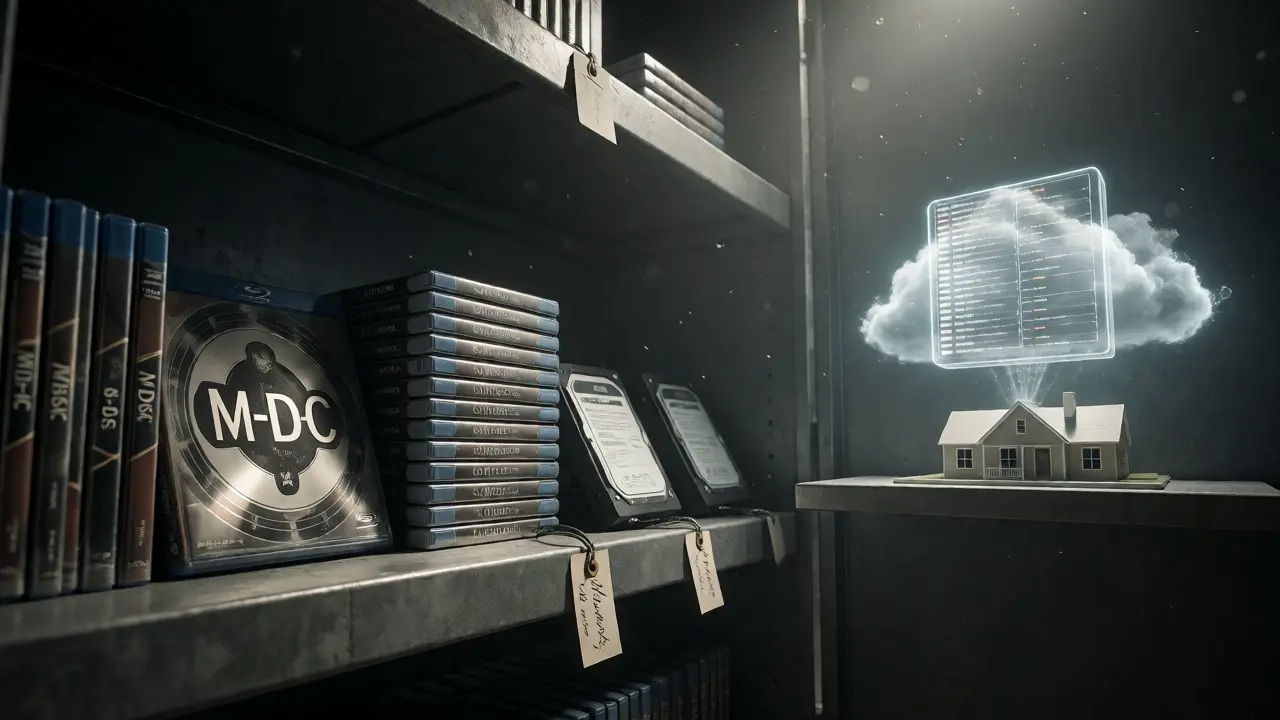
Is the cloud forever? Probably not. Companies change policies, raise prices, or shut down. For truly critical archives-like family heirlooms or major commercial projects-consider cold storage options.
Blu-ray discs (specifically M-DISC technology) claim a lifespan of 1,000 years. They are expensive per gigabyte but immune to magnetic degradation. LTO tape drives are another option, though overkill for most solo shooters unless you deal with video. For most photographers, rotating two sets of external hard drives-one kept in a fireproof safe, one stored at a relative’s house-is sufficient.
Remember: Electronics degrade. Even if a drive sits unused, capacitors age. Replace your backup drives every 3-5 years. Don’t wait for them to die. Treat them like consumables.
Troubleshooting Common Backup Failures
Even with a solid strategy, things go wrong. Here are the most common pitfalls:
- Corrupted Files: Silent bit rot can alter file bits over time. Use checksum verification tools (many NAS systems include this) to detect corruption early.
- Ransomware: If your local backup drive is always mounted, ransomware can encrypt it too. Use disconnected backups (unplug the drive after syncing) or cloud versions with immutable snapshots.
- Sync Conflicts: Editing the same catalog on two computers simultaneously without proper locking mechanisms can cause database errors. Stick to one primary workstation for catalog management.
When in doubt, simplify. A complex system that breaks is worse than a simple system that works. Start with the 3-2-1 rule. Master it. Then optimize.
Do I need to back up my JPEG exports?
Yes, but prioritize your RAW files. If you lose your RAW files, you cannot recover the full dynamic range and color depth. JPEGs are derivatives. If storage is tight, back up RAWs first, then JPEGs. However, since storage is cheap, backing up both is safer and saves you from re-exporting thousands of images.
How often should I replace my backup hard drives?
Every 3 to 5 years is a good rule of thumb. Mechanical parts wear out, and electronics degrade even when not in use. Don't wait for a drive to fail before replacing it. Proactive replacement prevents data loss during the inevitable failure window.
Is cloud storage safe from hackers?
Reputable providers use encryption (AES-256) both in transit and at rest. However, security depends on your account hygiene. Enable Two-Factor Authentication (2FA) on all accounts. Hackers usually target weak passwords, not the cloud infrastructure itself.
Can I use the same drive for working and backup?
No. Never store your only backup on the same physical device you are editing from. If that device fails, you lose both originals and backups instantly. Always maintain separate physical hardware for active work and backup storage.
What is the cheapest way to start backing up?
Buy two identical external hard drives. Connect one to your computer for daily manual copies. Keep the second disconnected in a drawer. Once a month, connect the second drive and run a full sync. Add a free-tier cloud service (like Amazon Photos or Flickr) for an offsite copy of your best work.