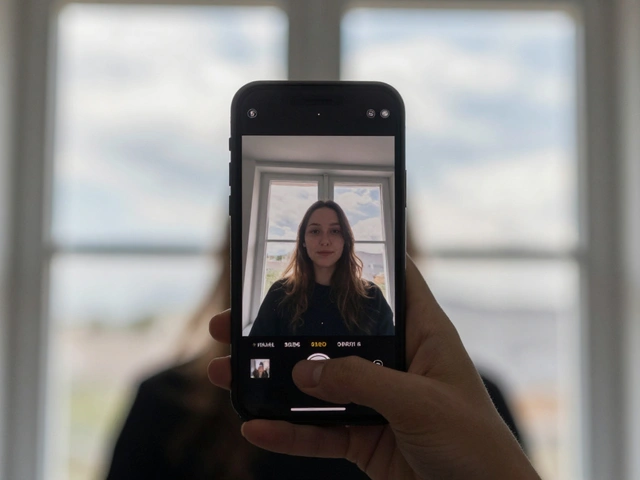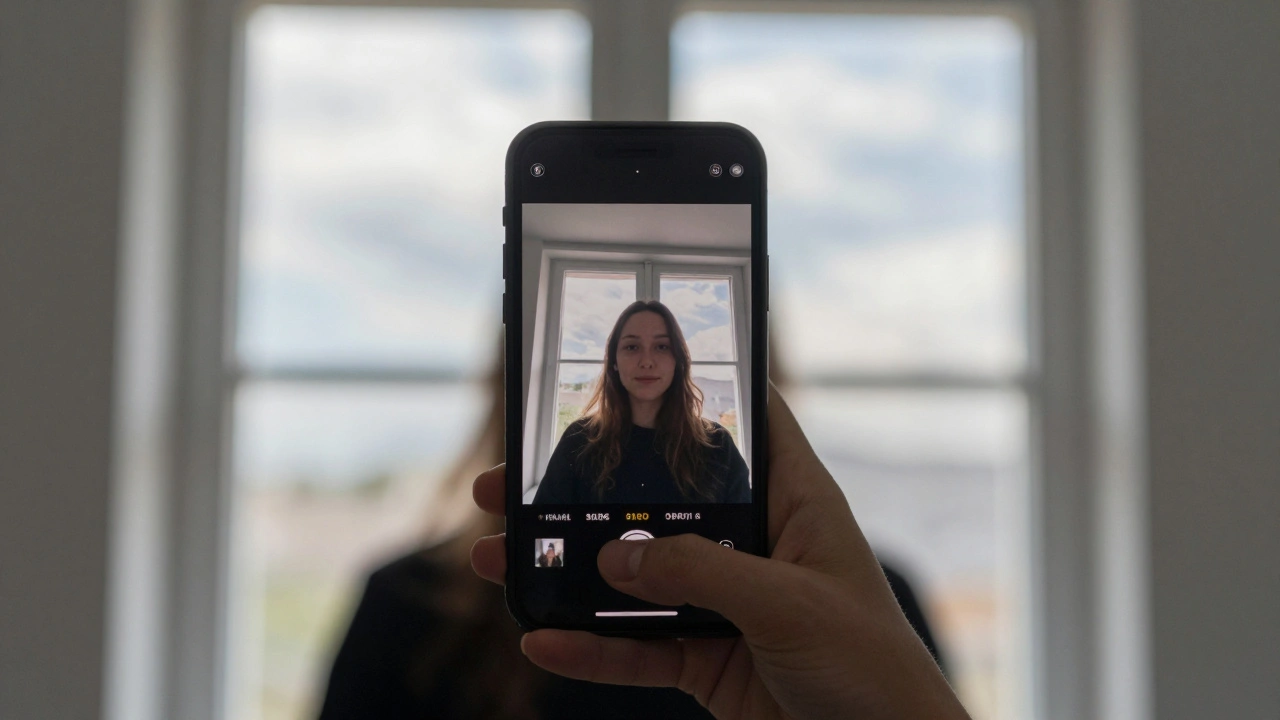
Most people think HDR on their smartphone is just a button that makes photos look more vibrant. But that’s not the whole story. HDR - High Dynamic Range - doesn’t just brighten things up. It’s a clever trick that your phone uses to see more than your eyes can in a single shot. When you’re standing in front of a window with sunlight pouring in, and your friend is standing in the shadow behind it, your phone’s sensor can’t capture both the bright window and your friend’s face clearly at the same time. That’s where HDR steps in. It takes three or more photos in a split second - one underexposed, one normally exposed, and one overexposed - and then stitches them together so you get detail in the sky and detail in your friend’s face. But here’s the catch: HDR isn’t always the answer. Sometimes, it makes things worse.
How HDR Actually Works (Without the Jargon)
Your smartphone camera has a tiny sensor, and it can only capture a limited range of brightness in one shot. Think of it like a bucket trying to catch rain. If the rain is light, it fills up nicely. If it’s a downpour, the bucket overflows. If it’s a drizzle, the bucket stays half-empty. HDR is like having three buckets - one small, one medium, one large - and then pouring the best parts of each into one final image. On Google Pixel phones, this process is called HDR+. The camera doesn’t wait for you to press the shutter. It’s already recording frames - 15 to 30 per second - as soon as you open the camera app. This is called Zero Shutter Lag. When you tap to take a photo, it picks the best 2 to 10 frames from that buffer. If you’re standing still, it uses more frames for better detail. If you’re moving, it uses fewer to avoid blur. The phone then stacks them, aligns them pixel by pixel, and uses machine learning to smooth out noise, fix color shifts, and sharpen edges - all without making the image look fake. Apple does something similar, but less visible. iPhones automatically switch between Standard HDR and Max HDR depending on lighting. Standard HDR gently lifts shadows and softens highlights. Max HDR pushes everything to the edge of what the screen can show. And if your battery is below 20%, or you’re outside in direct sunlight, your iPhone turns HDR off completely - not because it doesn’t want to, but because it needs to save power and keep the screen as bright as possible.When HDR Makes Your Photos Better
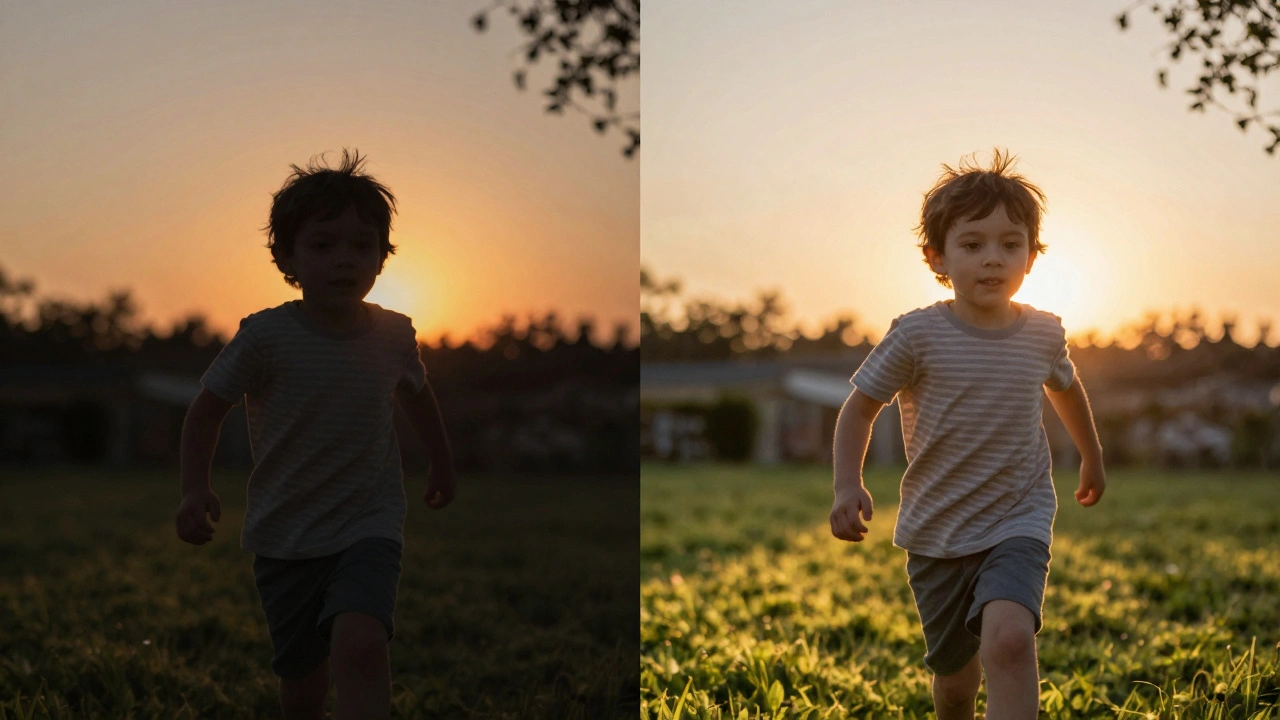
HDR shines in three real-world situations:- Backlit subjects - Think of someone standing in front of a window, or a person at sunset with the sun behind them. Without HDR, their face turns into a dark silhouette. With HDR, you see their eyes, their smile, the texture of their clothes.
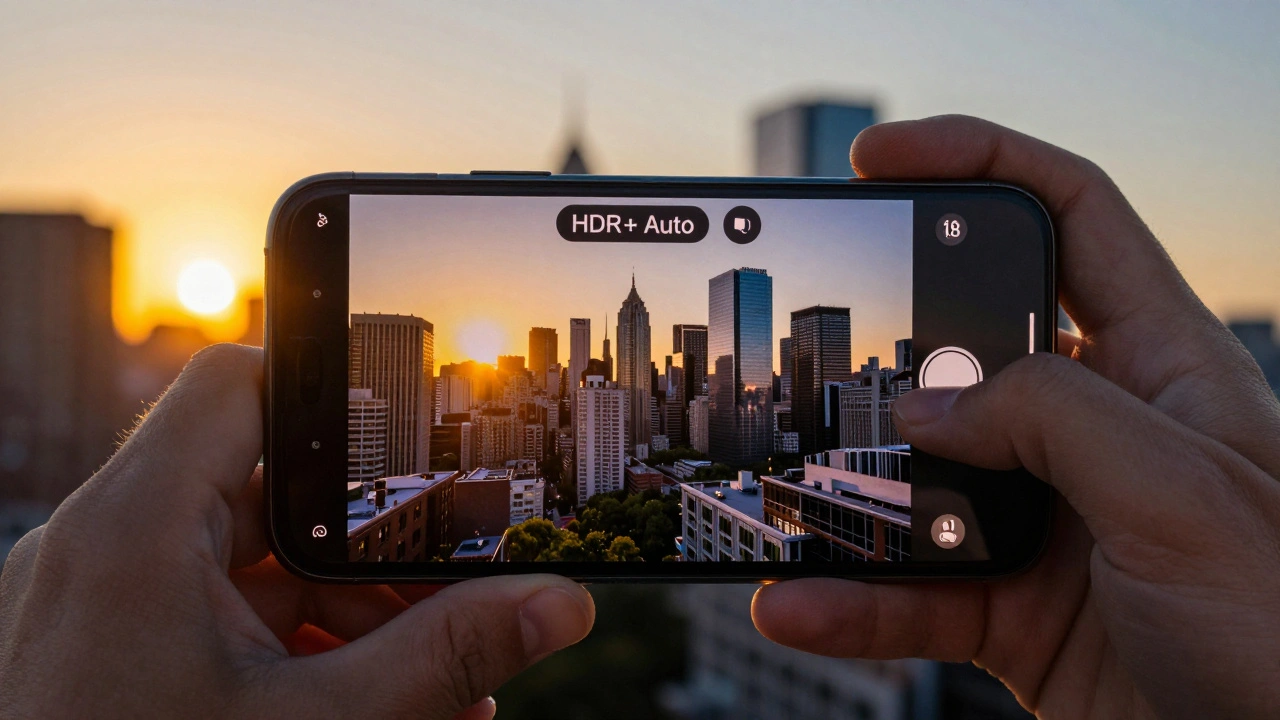
- High-contrast outdoor scenes - A white building under a bright blue sky, a forest with patches of sunlight breaking through the trees, or a city skyline at golden hour. HDR keeps the clouds from turning into a washed-out blur and the shadows from swallowing details.
- Indoor scenes with mixed lighting - A room lit by a window on one side and a lamp on the other. HDR balances the cool daylight with the warm glow of artificial light without turning one side into a glare or the other into a black hole.
These are the moments where HDR isn’t optional - it’s the difference between a snapshot and a photo you’ll actually want to keep.
When HDR Makes Things Worse
Here’s the truth: HDR isn’t magic. It’s math. And math sometimes gets it wrong.- Moving subjects - If your kid is running across the yard, or a dog is chasing a ball, HDR can turn them into ghostly blurs. The phone is trying to align multiple frames, but motion breaks the alignment. In these cases, turn HDR off. You’ll get a slightly darker photo, but at least it’ll be sharp.
- High-contrast scenes with strong colors - HDR can sometimes over-saturate reds and blues. A red car in the sun might look like a neon sign. A blue sky might turn purple. This happens when the algorithm overcompensates trying to recover detail. If you’re shooting something where color accuracy matters - like art, fashion, or product photos - skip HDR.
- Low-light scenes - In dim lighting, HDR can make noise worse. Instead of lifting shadows cleanly, it amplifies grain. If you’re in a dim restaurant or at night, let your phone use Night Mode instead. It’s designed for this.
- Simple, even lighting - A plain white wall, a gray sky, a flat-lit room. There’s no contrast to fix. HDR just adds processing time, drains battery, and sometimes makes the image look unnaturally flat or overly sharpened.
Think of HDR like a filter on Instagram. It’s great for some photos - but you wouldn’t use it on every single picture. The same goes for your phone.
HDR on Different Phones: Google vs. Apple vs. Samsung
Not all HDR is created equal. The difference isn’t just in the name - it’s in how the software works.| Device | HDR Type | Key Feature | Processing Speed | Best For |
|---|---|---|---|---|
| Google Pixel | HDR+ | Zero Shutter Lag + AI stacking | Fast (Auto) / Slower (Enhanced) | Dynamic scenes, low-light, color accuracy |
| iPhone | Standard / Max HDR | Automatic switching, tone mapping | Very fast | Everyday shots, portraits, consistency |
| Samsung Galaxy | HDR10+ | Dynamic metadata for video | Fast | Video, bright outdoor scenes |
Google Pixel’s HDR+ is the most aggressive. It’s designed to extract detail from extreme shadows and highlights, even in tricky lighting. That’s why it’s the gold standard for computational photography. But it’s also the slowest - especially in Enhanced mode. If you’re in a hurry, use HDR+ Auto.
iPhones are smarter about when to use HDR. They don’t ask you. They just do it - and turn it off when it doesn’t help. That’s why most iPhone users don’t even realize HDR is on. It’s seamless. And because Apple controls both hardware and software, the results are predictable.
Samsung’s HDR10+ is mostly about video. It adds metadata that tells your TV how to display each frame. For photos, it’s similar to other brands. But if you’re recording 4K video outdoors, HDR10+ gives you more color depth and fewer blown-out highlights.
Should You Leave HDR On All the Time?
No. And here’s why.HDR uses more processing power. That means more battery drain. It also takes longer to save the photo - sometimes several seconds. And it uses more storage. A single HDR photo can be 2 to 3 times larger than a regular one. If you’re shooting 50 photos a day, that’s an extra 1GB of storage every week.
Most people don’t need HDR for 90% of their shots. A sunny day at the park? Maybe. A selfie in your kitchen? Probably not. A night out with friends under dim lights? Skip it. Let Night Mode handle that.
The smart move? Set HDR to Auto. That way, your phone decides based on the scene. Most phones do this well now. On Pixel, it’s HDR+ Auto. On iPhone, it’s just called HDR - and it’s enabled by default. On Samsung, HDR10+ is usually on for photos too.
But if you’re shooting fast-moving subjects, or you’re in a hurry, or your battery is low - turn it off manually. You’ll thank yourself later.
What About HDR Displays?
Here’s something most people miss: HDR on your camera doesn’t mean HDR on your screen.Your phone’s display can show HDR content - meaning it can display brighter whites and deeper blacks than older screens. But not all HDR photos look the same on every phone. Why? Because HDR images are processed differently, and screens have different brightness limits.
Some phones use a trick called gain mapping. This means the photo file actually contains two versions: one optimized for standard screens (SDR) and one for HDR screens. When you view it on an iPhone, it shows the HDR version. When you view it on an older Android phone, it shows the SDR version. The file stays the same. The display adapts.
That’s why a photo you took on your Pixel might look perfect on your new Samsung but weird on your friend’s old iPhone. It’s not broken. It’s designed to work across devices.
Pro Tips: How to Get the Most Out of HDR
- Use HDR+ Auto on Pixel phones - It’s fast, smart, and gives you 90% of the quality with 10% of the delay.
- Turn HDR off for portraits with bright backgrounds - Sometimes, HDR flattens skin tones. If your subject’s face looks too smooth or unnatural, try turning it off.
- Shoot in RAW + HDR - If your phone supports it (Pixel and iPhone do), capture in RAW format with HDR enabled. You’ll have more room to edit later.
- Don’t rely on HDR for night shots - Use Night Mode. It’s built for low light. HDR isn’t.
- Check your storage - If your phone is full, HDR photos will fill it up fast. Consider turning it off if you’re running low.
Smartphone cameras are getting better every year. But the best tool is still the one you know how to use - and when to turn off.
Should I always leave HDR on my phone?
No. HDR is useful in high-contrast scenes, but it’s unnecessary - and sometimes harmful - in evenly lit conditions, moving subjects, or low-light environments. Most phones have an Auto setting that turns HDR on only when needed, which is the best default for most users.
Why does HDR take longer to save photos?
HDR captures multiple exposures (usually 3-10) and then combines them using complex algorithms to balance light and shadow. This process requires significant processing power, which takes time - especially on older phones or when HDR+ Enhanced is active. Fast phones with dedicated image processors handle it better.
Does HDR use more battery?
Yes. HDR requires the camera to capture multiple frames, process them with AI, and apply advanced noise reduction and color correction. This uses more CPU and memory than a single-shot photo. On iPhones, HDR turns off automatically in Low Power Mode because of this.
Can I use HDR for video?
Yes - but it works differently. HDR for video (like HDR10+ on Samsung phones) uses dynamic metadata to adjust brightness and color frame by frame. This is different from photo HDR, which combines multiple exposures. Most phones record HDR video automatically when you select HDR mode in video settings.
Why do my HDR photos look different on other phones?
Because not all screens can display HDR the same way. Your phone’s HDR photo may contain both an HDR and SDR version of the image. When viewed on a non-HDR screen, it falls back to the SDR version. On HDR screens, it shows the enhanced version. This ensures consistent appearance, but results can vary based on screen brightness and color calibration.